The Interview Templates Tab
The Interview Templates (Interview Templates) section is the central library of all available templates. A template is a ready-made set of questions and parameters for an interview of a specific type and specialization.
On this page, you can choose a suitable template and immediately create a new interview based on it. Templates are provided and maintained by the RECRUITER.AI team.
What Templates Contain
Interview templates usually include:
- pre-prepared questions by specialization;
- interview duration settings;
- interview language;
- interview type:
self-assessmentorp2p.
Main Page Elements
The Interview Templates page contains:
- a templates table, which lists all available templates, where each row corresponds to a separate template;
- a toolbar, which contains buttons for creating interviews, showing filters, resetting filters, and refreshing the list;
- a filters panel, which allows searching by name, specialization, type, language, and other parameters.

How The Templates Table Works
The table supports row selection, sorting by column headers, and pagination.
Main columns:
| Column | What it shows |
|---|---|
Name (Name) | Template name, for example General Management Program Trainee [ru] |
Specialization (Specialization) | Area, for example trainee, java, react |
Type (Type) | self-assessment or p2p |
Tags (Tags) | Keywords used for filtering |
Interview Language (Interview Language) | Template language, for example RU, EN, DE |
| Active / Configurable / Tech review | Template status and attributes |
Last Change (Last Change) | Date of the last update |
What The Toolbar Does
| Action | Purpose |
|---|---|
| Create interview from selected template | Starts interview creation based on the selected template |
| Show filters | Shows or hides the filters panel |
| Reset filters | Resets all applied filters |
| Refresh data | Refreshes the templates list |
Main Scenario: Create An Interview From A Template
- Open the Interview Templates section.
- Find the required template using the filters panel.
- Click the template row to select it.
- Click Create interview from selected template in the toolbar.
- The system will open the interview creation form. The next steps depend on the template type.
If A Self-Assessment Template Is Selected
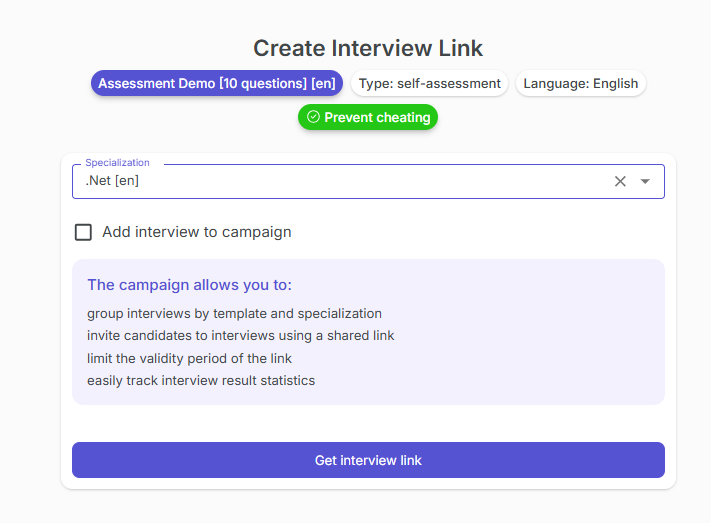
For a Self-Assessment interview, you usually need to:
- Select the specialization if it is not fixed in the template.
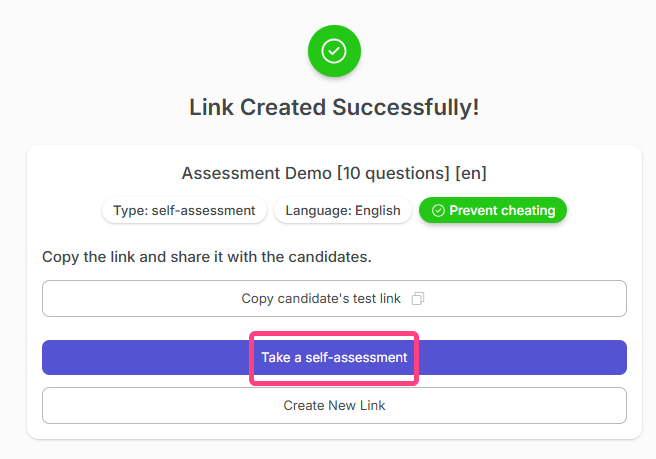
- Click Get link.
- Copy the generated link and send it to the candidate.
If A P2P Template Is Selected
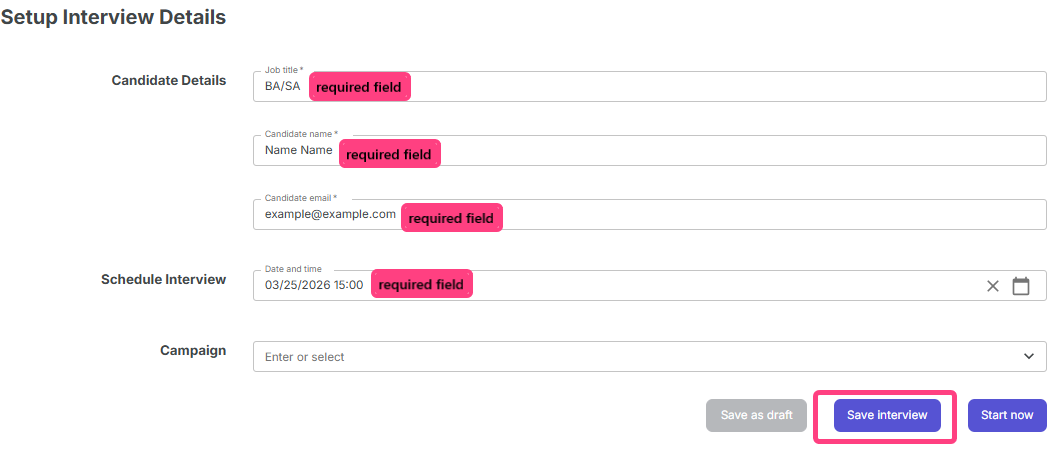
For a P2P interview, you need to fill in the main fields:
- Candidate name;
- Candidate email;
- Date and time;
- Campaign, if you want to link the interview to an existing campaign or create a new one.
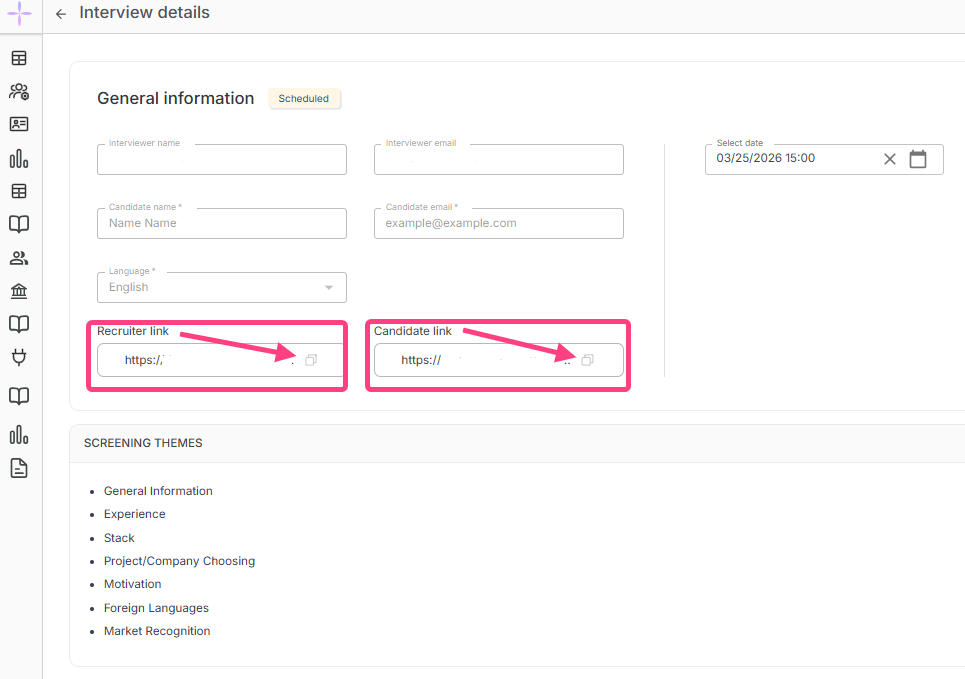
After that, click Save. The system will create the interview and provide two links:
- Recruiter link for the recruiter to join;
- Candidate link for the candidate.
Important
The Interview Templates page is the starting point for launching a new interview. After an interview is created, all further work with it continues in the corresponding system sections.