Knowledge Matrices: Question Management (For Administrators)
The Knowledge Matrices (Knowledge Scope) section is intended for creating and managing reference competency matrices. A matrix defines the topic structure, skills, and evaluation criteria for a specific specialization and is used as the basis for generating questions in interview templates.
Purpose Of Knowledge Matrices
Knowledge matrices make it possible to:
- structure candidate requirements by specialization;
- define skill levels such as
Basic,Intermediate, andAdvanced; - build a question base for technical screening;
- ensure unified evaluation standards for all recruiters.
How To Open The Knowledge Matrices Section
- In the sidebar, open Knowledge Matrices.
- A page with the list of matrices available in your organization will open.
Knowledge Matrices Page Interface
The page consists of a toolbar and a matrices table.

1. Toolbar
The toolbar contains the main actions for working with matrices.
| Button | Purpose |
|---|---|
| Edit / Open | Opens the selected matrix so you can view and edit its structure. |
| Copy link | Copies a direct link to the selected matrix. |
| Delete | Deletes the selected matrix. |
| Show / Hide filters | Opens or hides the search and filtering panel. |
| Reset filters | Resets the active filters. |
| Select all / Clear selection | Lets you quickly select all matrices on the page or remove the selection. |
| Refresh data | Refreshes the table and loads the latest data. |
2. Knowledge Matrices Table
The table displays all available matrices. Each row corresponds to one matrix.
| Column | Description |
|---|---|
Name (Name) | Matrix name, for example Python (ML) or React Assessment Demo P2P. |
Language / Tags (Language / Tags) | The language of the matrix content and a set of keywords. |
Questions / Tasks (Questions / Tasks) | The number of questions and practical tasks in the matrix. |
External IDs (External IDs) | Links to external systems. This field is usually left empty. |
Public (Public) | Shows whether the matrix is available to other organizations. |
Disabled (Disabled) | Shows whether the matrix is active. |
Organization / Updated By (Organization / Updated By) | The matrix owner and the author of the latest change. |
Updated (Updated) | Date and time of the latest update. |
How To Work With Knowledge Matrices
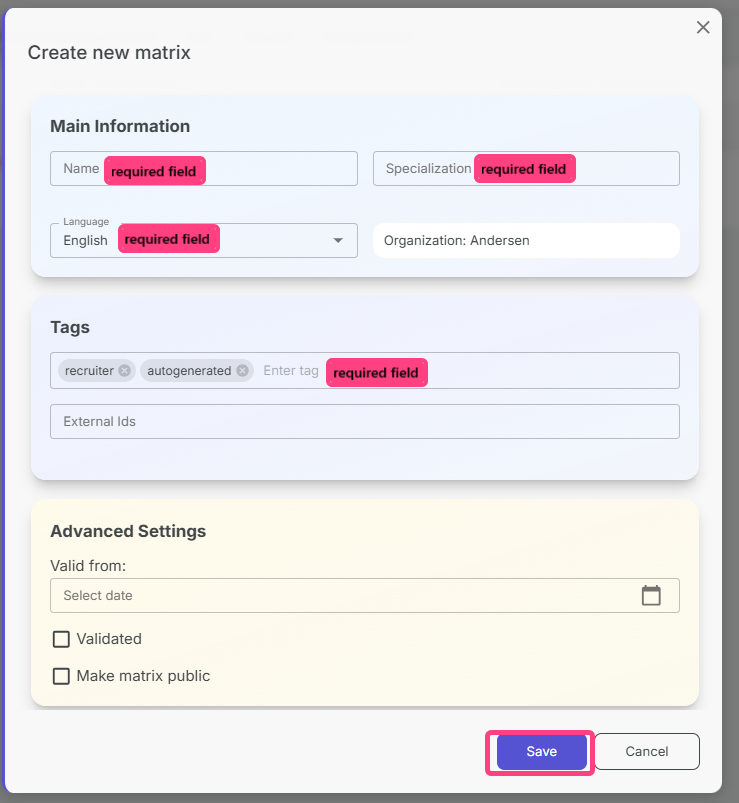
Create A New Matrix
- Click Create in the toolbar.
- In the form that opens, fill in:
- Name;
- Specialization;
- Tags — a required field. Enter keywords separated by spaces. The system uses them to match and link questions;
- External ID — for custom matrices, this is usually left empty.
- Click Save.
Add Questions To The Matrix
After creation, the matrix can be filled with questions in two ways.
Method 1. Using The Existing Question List
- Open the required matrix.
- If it already contains questions, click the toolbar button with the question count.

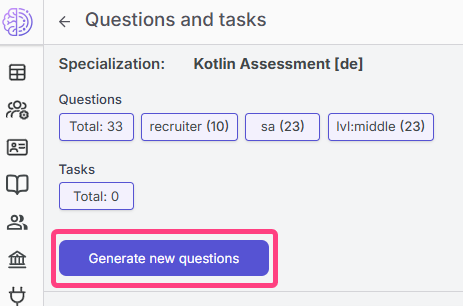
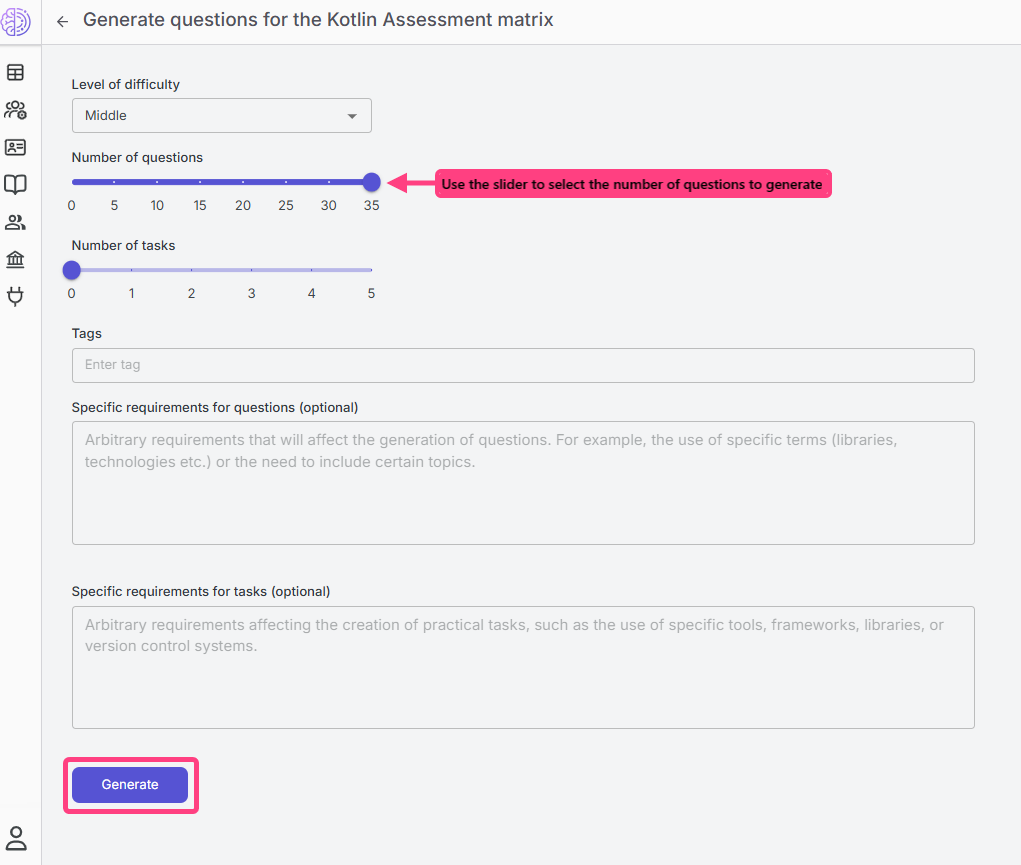
Method 2. Generate Questions With AI
- Inside the matrix, click Generate new questions.
- Specify the number of questions and the target tag.
- The system will automatically generate questions for the selected topic.
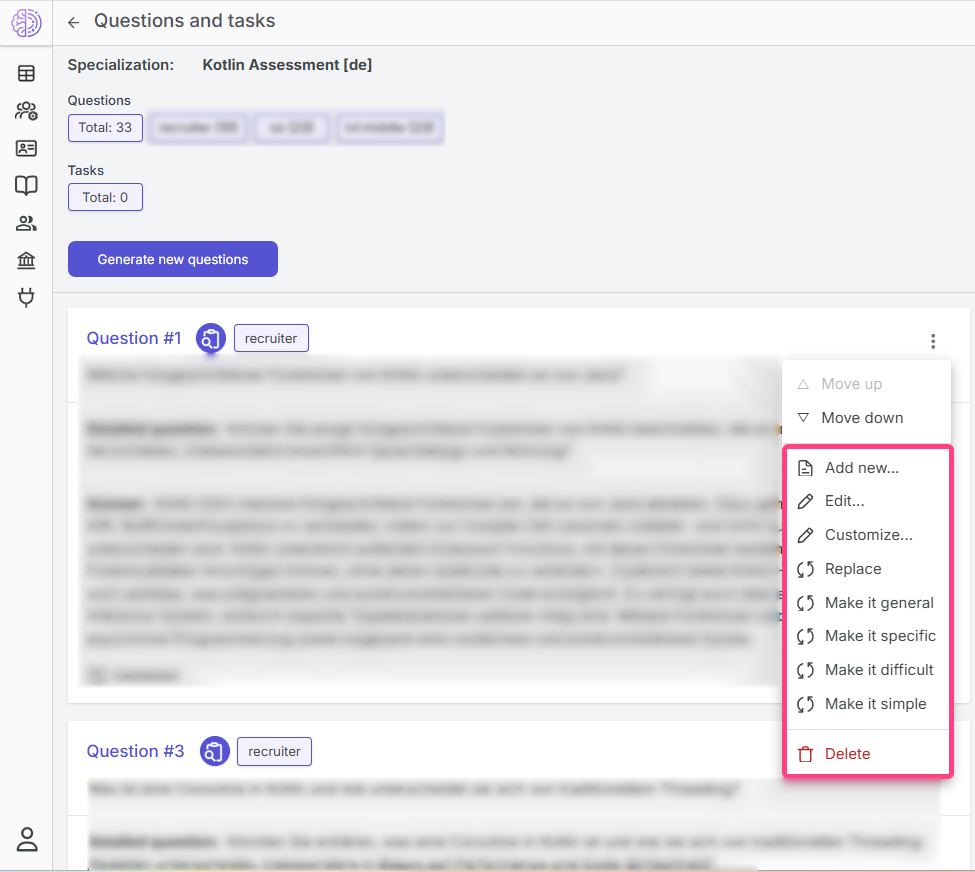
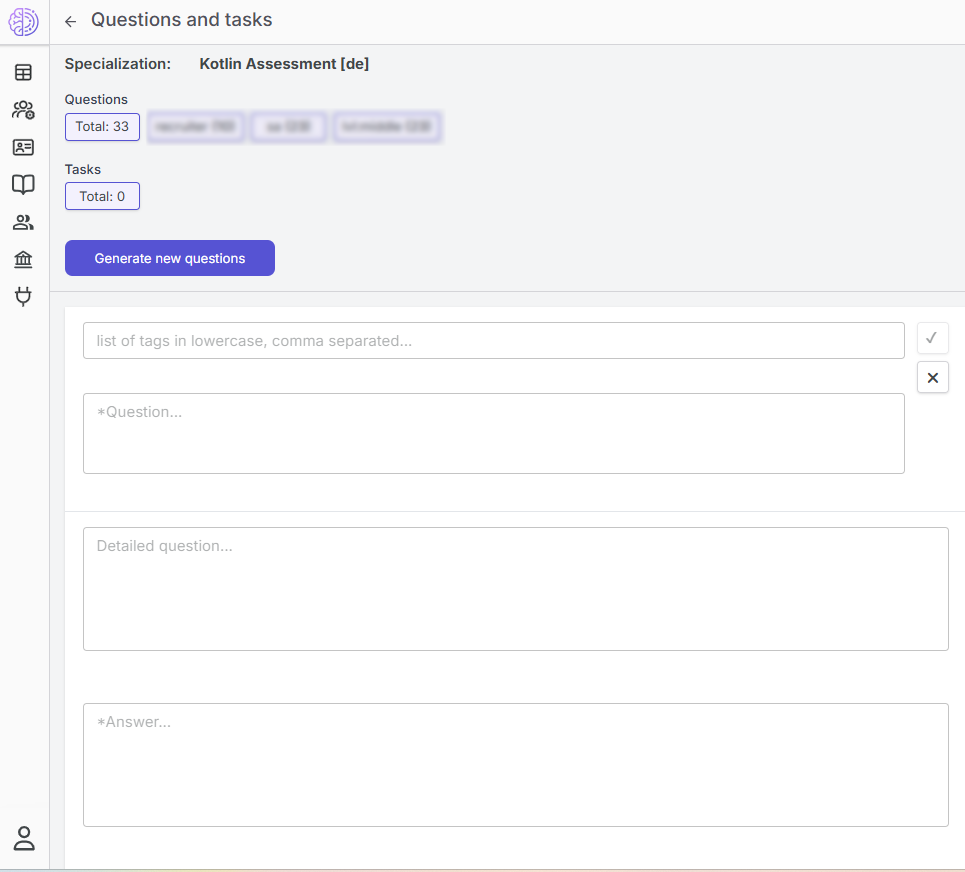
Method 3. Add A Question Manually
- Open the page with all matrix questions.
- Click Create new question.
- Fill in the fields:
- question text — required field;
- detailed question — required field;
- expected answer — required field;
- tags — required for linking the question to topics.
- Click Save.
Edit The Matrix Structure
- Select the required matrix in the table.
- Click Edit in the toolbar.
- Inside the matrix, you can change:
- the structure of categories and topics;
- descriptions of knowledge levels such as
Basic,Intermediate, andAdvanced; - links between questions and topics.
- After making changes, click Save.
Copy A Matrix
If you need to create a variation of an existing matrix:
- Select the required matrix.
- Use Copy matrix from the row actions menu or the toolbar.
- Enter a new name and adjust the parameters if needed.
- Click Save.
Important: a correctly configured knowledge matrix with properly assigned tags ensures accurate matching of questions to the candidate's specialization and directly affects interview quality.