Campaigns
A campaign allows you to organize mass hiring within a single vacancy, project, or hiring stream. It creates a shared interview space for the selected template and specialization, provides a common candidate link, and combines all interviews into one database.
What A Campaign Provides
- One shared link for all candidates, without the need to create a separate interview for each one.
- A limited validity period for the link during the hiring process.
- A common database of all interviews conducted within the campaign.
- The ability to add other participants, such as recruiters or coordinators.
- Team performance statistics, including data on who copied and sent the link to candidates.
How To Create A Campaign
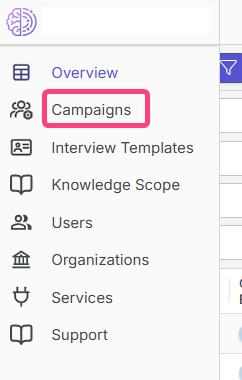
- In the sidebar, open the Campaigns section.
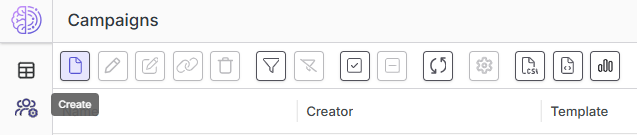
- On the campaigns page, click Create in the top toolbar.
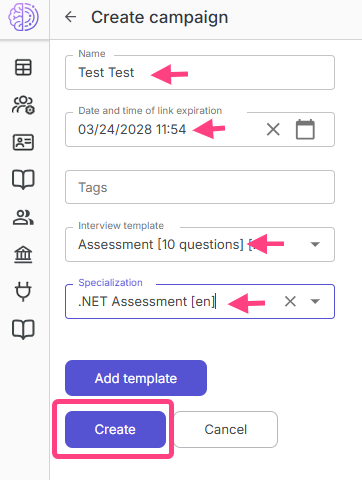
- Fill in the campaign creation form.
-
Required fields: Campaign name.
-
Link expiration date and time. By default, the system sets the link validity period to 1 year, but it can be changed.
-
Interview template.
-
Specialization.
-
Optional fields: Tags for easier filtering.
-
Project and vacancy. These fields are filled in if you need to create a campaign for a specific vacancy.
-
- Click Create.
- After creation, the campaign page with the main information will open.
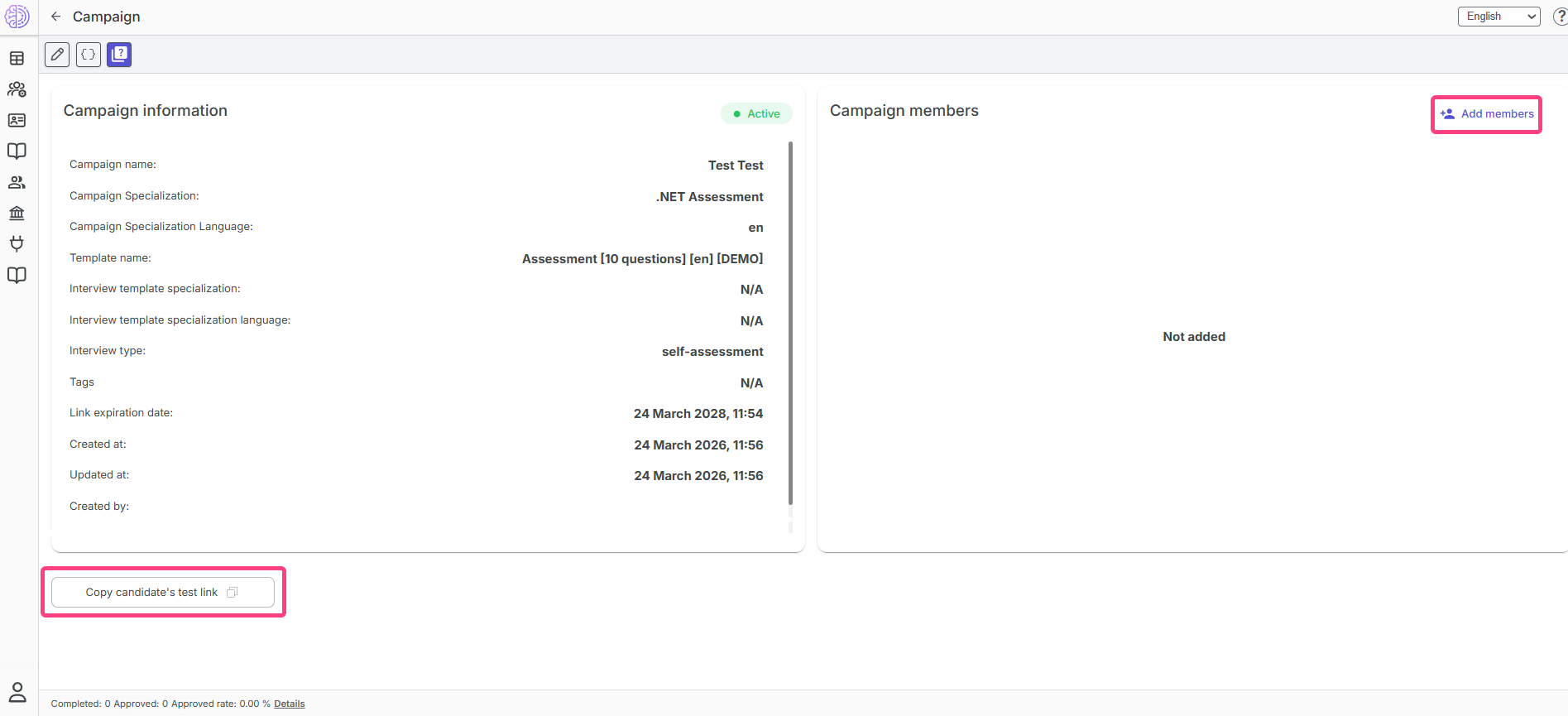
On this page, you will be able to:
- copy the interview link and send it to candidates;
- add participants for collaborative work within one campaign;
- view the results of all interviews created within the campaign;
- analyze team performance statistics;
- determine which recruiter attracted more candidates, since the system tracks link copying.
After that, the recruiter can send the link to candidates in a messenger, by email, or in any other convenient way, and continue working in other system sections.