Independent Registration Through The Welcome Page
This scenario is suitable if you are starting to work with the system on your own, without an invitation from an organization administrator.
Step-By-Step Instructions
- Go to the RECRUITER.AI Welcome page.
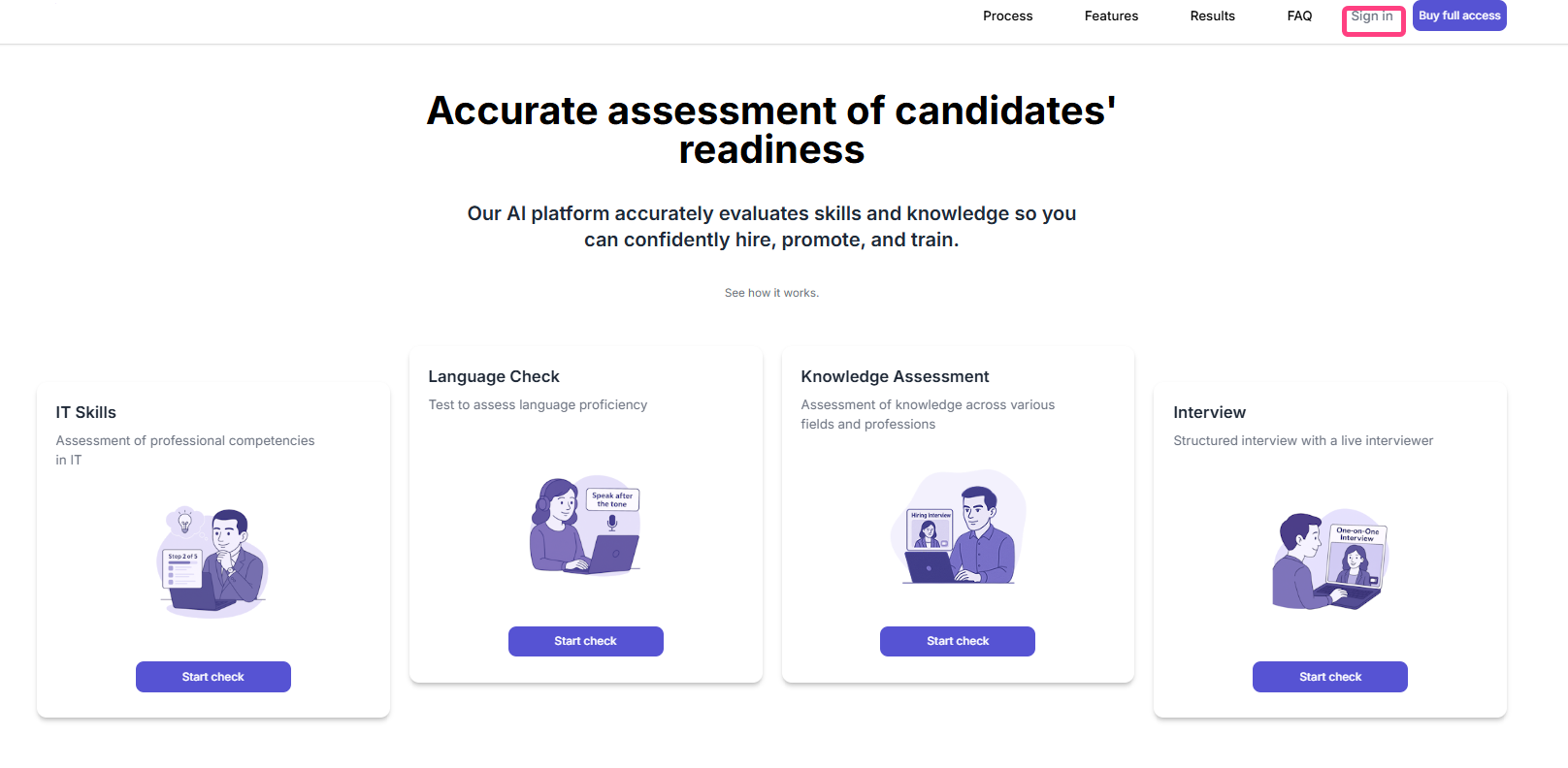
- Click Sign in and in the opened form choose Register.
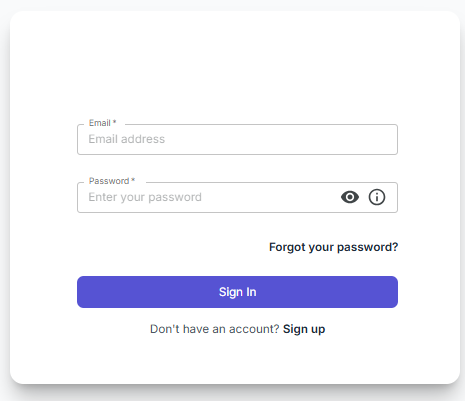
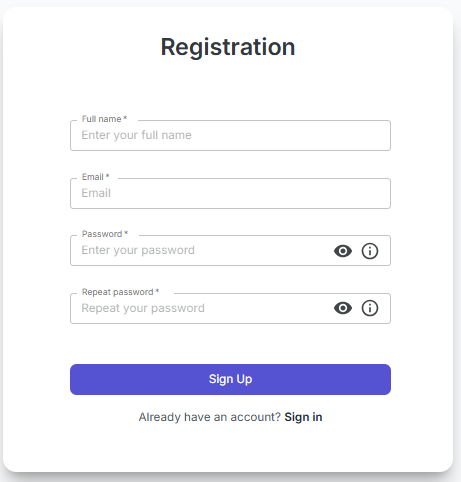
- Fill in the registration form:
- Full name
- Password
- Confirm password
- Click Register.
- After the form is submitted, a screen will appear saying that you need to confirm registration using the link from the email.
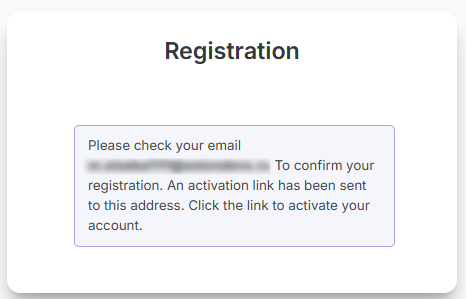
- Open the email, follow the activation link, and complete account confirmation.
What Happens After Registration
After this type of registration, you will be able to sign in to the system, but you may still not have an organization. In that case, the Overview, Templates, and Knowledge Matrices sections will not be available.
To get full access, use one of these two options:
| Option | What to do | Result |
|---|---|---|
| A | Ask an administrator to add you to an organization | You will receive an invitation email and will be able to join the organization |
| B | Complete a demo interview on the Welcome page | The system will automatically create a personal organization for you |
If You Want To Get An Organization Automatically
Through Self-Assessment
- Choose one of the cards: IT Knowledge, Language Check, or Knowledge Check.
- Click Start assessment, then Take test.
- Fill in your details and complete the test.
- After that, the system will create a personal organization for you.
Through P2P
- Choose the Interview card.
- Click Start assessment and select a specialization.
- Register using your email and password.
- After registration is complete, you will immediately enter your personal organization.
Important
If you end up in an empty account after independent registration, that is normal. Complete one of the options above, and the system features will become available afterward.