Basic Setup And Section Access Management
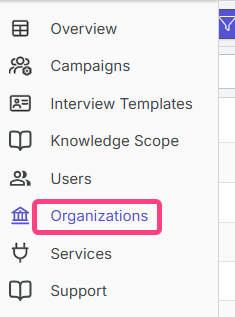
For full setup, open the Organization or Organization settings section. It is usually available through the profile menu or the gear icon.
What Is Available In Organization Settings
Organization settings contain several key tabs:
- Information: here you can change the organization name and review data related to your account, including organization roles and system information.
- Menu and Access: here you configure which system sections and which permission levels will be available to users in your organization.
- Knowledge Matrices and Interview Templates: here you define which matrices and templates from the shared catalog will be visible to organization users.
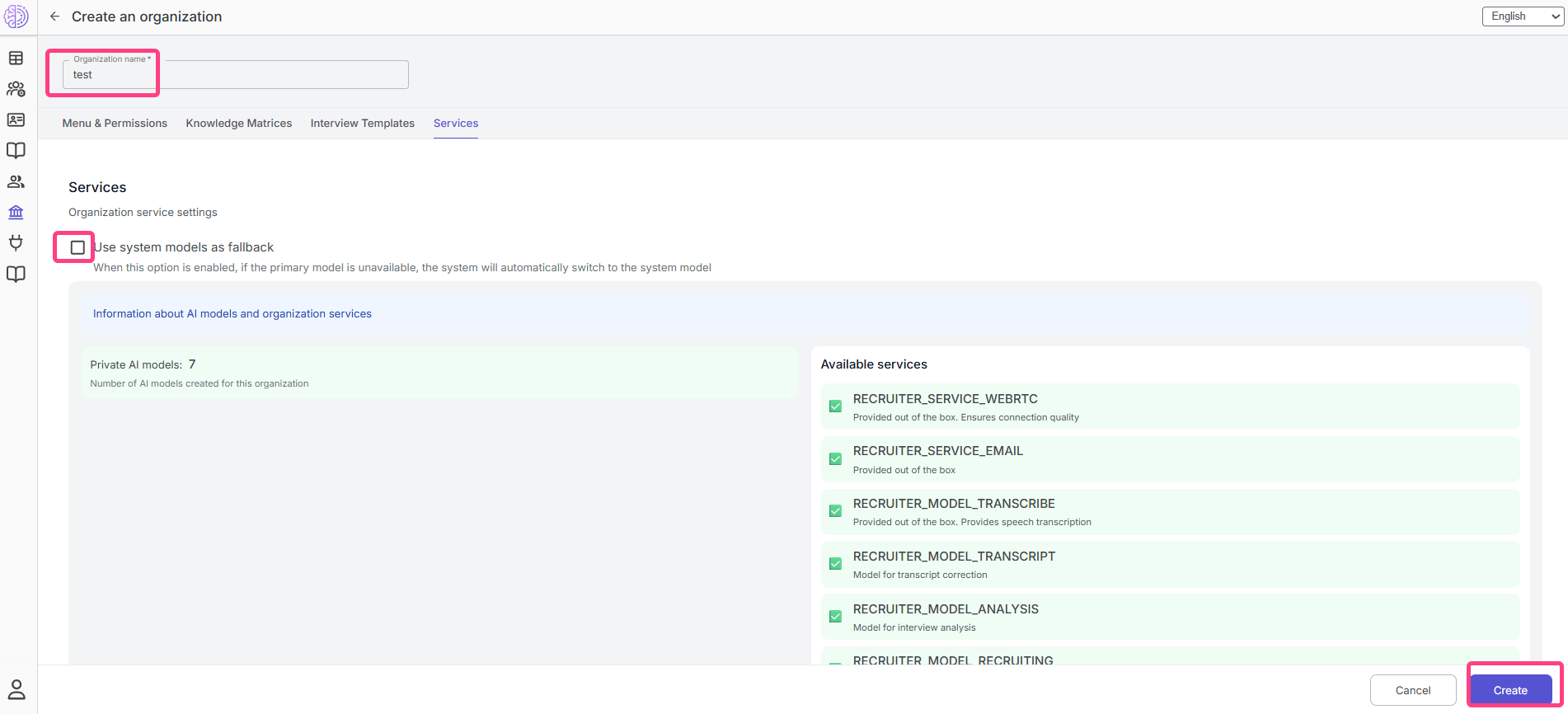
- Services: here you enable system aliases that ensure stable operation of internal services.
Step-By-Step Instructions
- Open Organization or Organization settings and go to the general settings page.
- On the Menu and Access tab, configure section access for the roles in your organization.
- If necessary, review the Knowledge Matrices and Interview Templates tabs to determine which materials from the shared catalog will be visible to users.
- On the Services tab, enable Use system aliases.
Recommended Initial Access Setup
The Menu and Access tab is especially important at the beginning. For each system section, you can choose which roles will have access: ADMIN, SENIOR, EXPERT, RECRUITER.
Recommended starting scheme:
| Section | Who should have access |
|---|---|
| Knowledge Matrices | ADMIN, SENIOR, EXPERT |
| Users | ADMIN only |
| Services | ADMIN only |
| Email templates | ADMIN only |
| Help | RECRUITER, SENIOR, EXPERT, ADMIN |
The Knowledge Matrices section is best left available for roles involved in preparing and conducting interviews, since it is the foundation for interview creation.
The Help section is recommended for all roles because it contains instructions for solving common equipment issues.
Recommendations For Matrix And Template Visibility
On the Knowledge Matrices and Interview Templates tabs, you can configure filters that determine which materials from the shared catalog will be visible to organization users.
For interview templates, it is recommended at the start to:
- leave Show only private interview templates disabled, so public templates remain available;
- keep Show only active interview templates enabled, if it is already turned on;
- optionally specify the tag
recruiterin the Filter by tags field; if you are not sure which tags to use, you can leave the field empty.
For knowledge matrices, it is recommended to:
- leave Show only private knowledge matrices disabled, so the public matrix library remains available;
- optionally use the tag
recruiterin the Filter by tags field, or leave the field empty.
Why You Should Enable System Aliases
The Use system aliases option determines which internal services will be used by default for your organization. This may include the AI model for analysis, the transcription service, and the email service.
Using system aliases allows you to:
- avoid manually configuring complex technical parameters;
- use predefined and optimized configurations;
- ensure stable interview operation, answer analysis, and email notifications.
At the initial stage, it is recommended to enable this option immediately after creating the organization.
Final Recommendation
If you are not confident about detailed settings, focus on these three steps:
- Create the organization.
- Configure access on the Menu and Access tab.
- Enable system aliases on the Services tab.
The remaining filters can be left at their default values to preserve the broadest possible access to the system’s verified materials.