Sign In
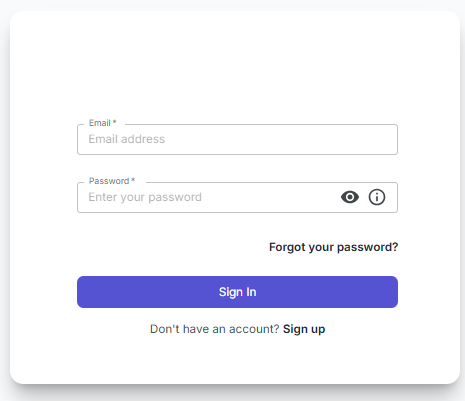
After registration, or after receiving an invitation email for registration, you can sign in to the system:
- Go to the main page: RECRUITER.AI
- Click Sign in in the upper-right corner.
- Enter your credentials:
- Password
- Click Sign in.
- If you forgot your password:
- On the sign-in page, click Forgot your password?
- Enter the email address used during registration.
- Click the request submission button, for example Reset password.
- You will receive an email with a link to create a new password. Follow it and set the new password.
- After that, return to the sign-in page and sign in with the new password.
- After a successful sign-in, the system automatically redirects you to the registered user’s home page, Overview.
What To Do After Sign-In: How To Access Results
After signing in, you enter the Overview section, which is the central dashboard where all interviews are displayed.

Important Note
If you registered independently through the Register button and have not yet completed a demo interview, you may end up in an empty account after signing in, meaning without an organization. In that case, the Overview section will be empty, and the sidebar menu may be missing.
What to do:
- either ask an administrator to add you to an existing organization;
- or complete any demo interview on the Welcome page, either Self-Assessment or P2P, and the system will automatically create a personal organization for you.
You can read more about this in the Registration in the system section.