Registration In The System (How To Create An Account)
There are two ways to get access to the system as a registered user:
Method 1: Invitation From An Administrator (Recommended)
If your company already uses RECRUITER.AI, an administrator can send you an invitation.
How it works:
- The administrator adds you through the Users section.
- You receive an email with the subject Invitation to join RECRUITER.AI.
- Click Confirm your email address and set a password, then create the password.
- After that, you immediately enter the organization with access to all sections.
Advantage: no additional actions are required.
Method 2: Independent Registration Through The Welcome Page
This method is suitable if you are starting on your own, without an invitation.
Step-by-step instructions:
- Go to RECRUITER.AI.
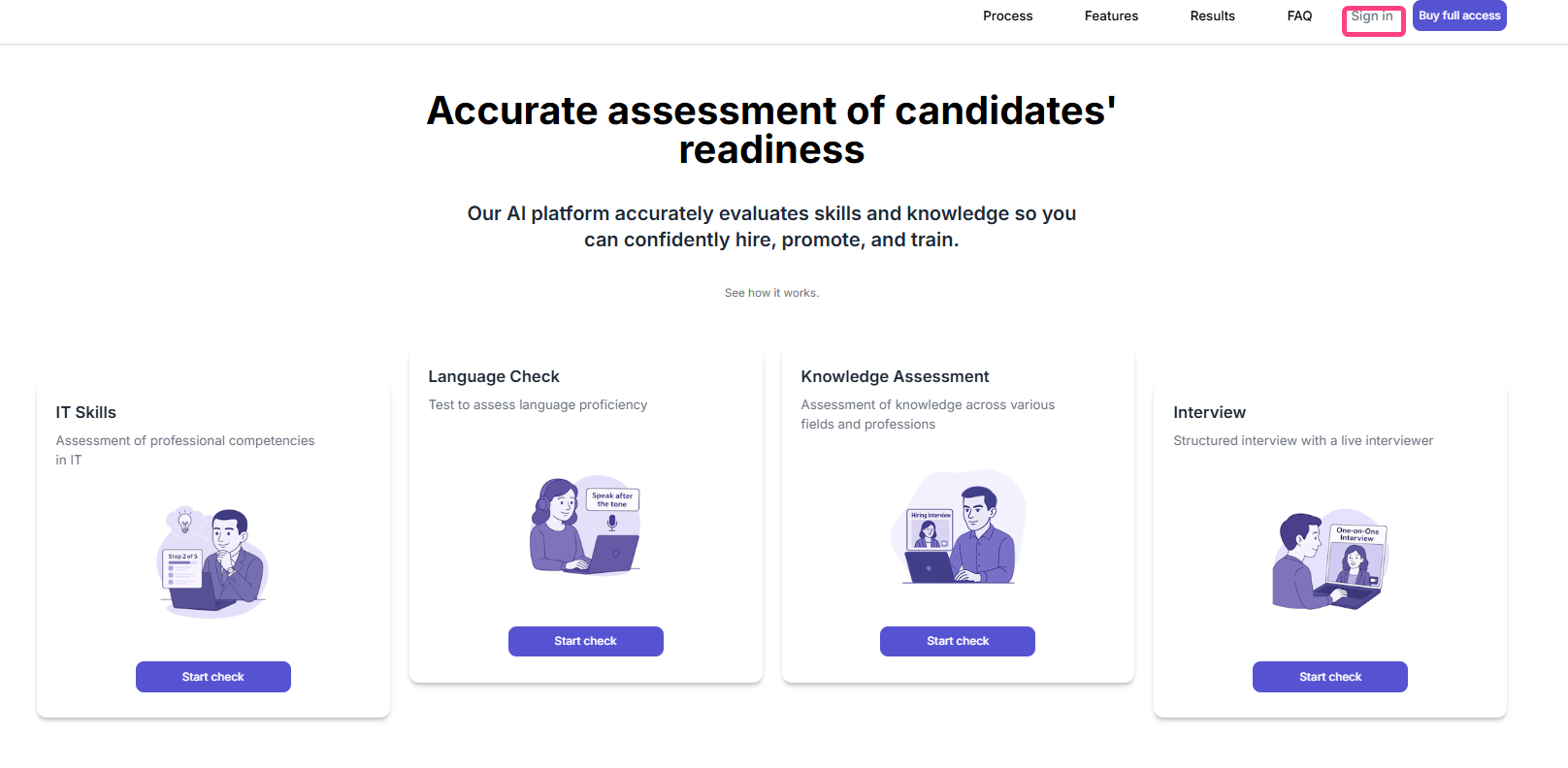
- Fill in the form with your email and password.
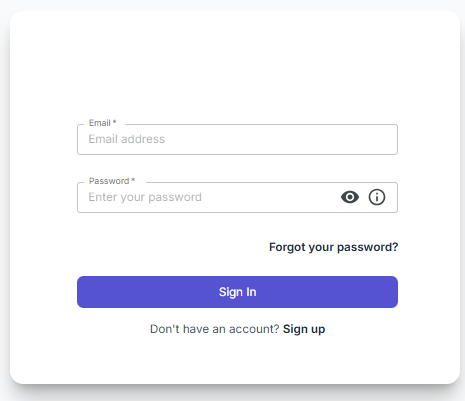
- Click Register.
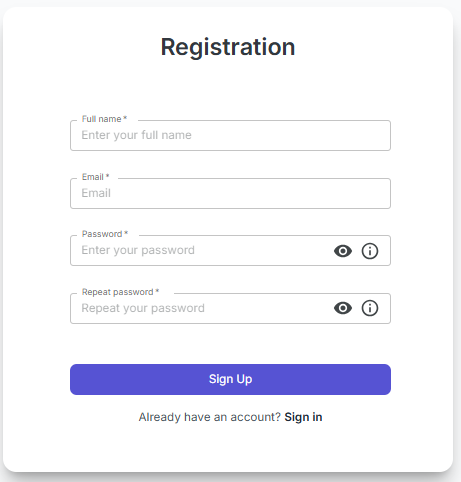
- Fill in the registration form fields:
- Full name*
- Email*
- Password*
- Confirm password*
- Register button
- After clicking Register, a screen appears:
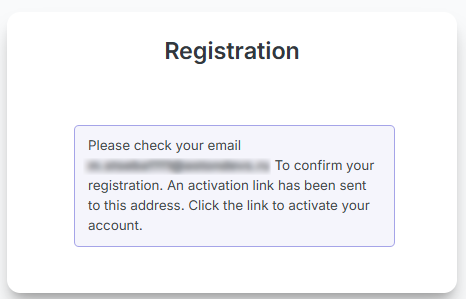
- “Check your email”
- “Confirm registration. The activation link has been sent to this address. Follow the link to activate your account.”
What Happens Next?
After this registration, you enter the system, but you still do not have an organization. Without it, the Overview, Templates, and Knowledge Matrices sections are not visible.
To get full access, do one of the following:
| Option | What to do | Result |
|---|---|---|
| A | Ask an administrator to add you to an organization | You will receive an invitation, just like in Method 1 |
| B | Complete a demo interview on the Welcome page, either Self-Assessment or P2P | The system will automatically create a personal organization for you |
More About Option B
- Self-Assessment: choose a card, such as IT Knowledge, Language Check, or Knowledge Check, then Start assessment -> Take test -> fill in your details -> complete the test. After that, the system creates a personal organization for you.
- P2P: choose the Interview card -> Start assessment -> choose a specialization -> register using email and password. After that, you immediately enter your personal organization.
Important: if you end up in an empty account after independent registration, that is normal. Just complete one of the options above, and all functions will become available.