The "Language Check" Card: How To Take The Test
How to complete the Language Check assessment
The process consists of several steps. Follow the instructions below.
Step 1: Choose A Language And Start The Test
- On the Welcome page, click Start assessment on the
Language Checkcard.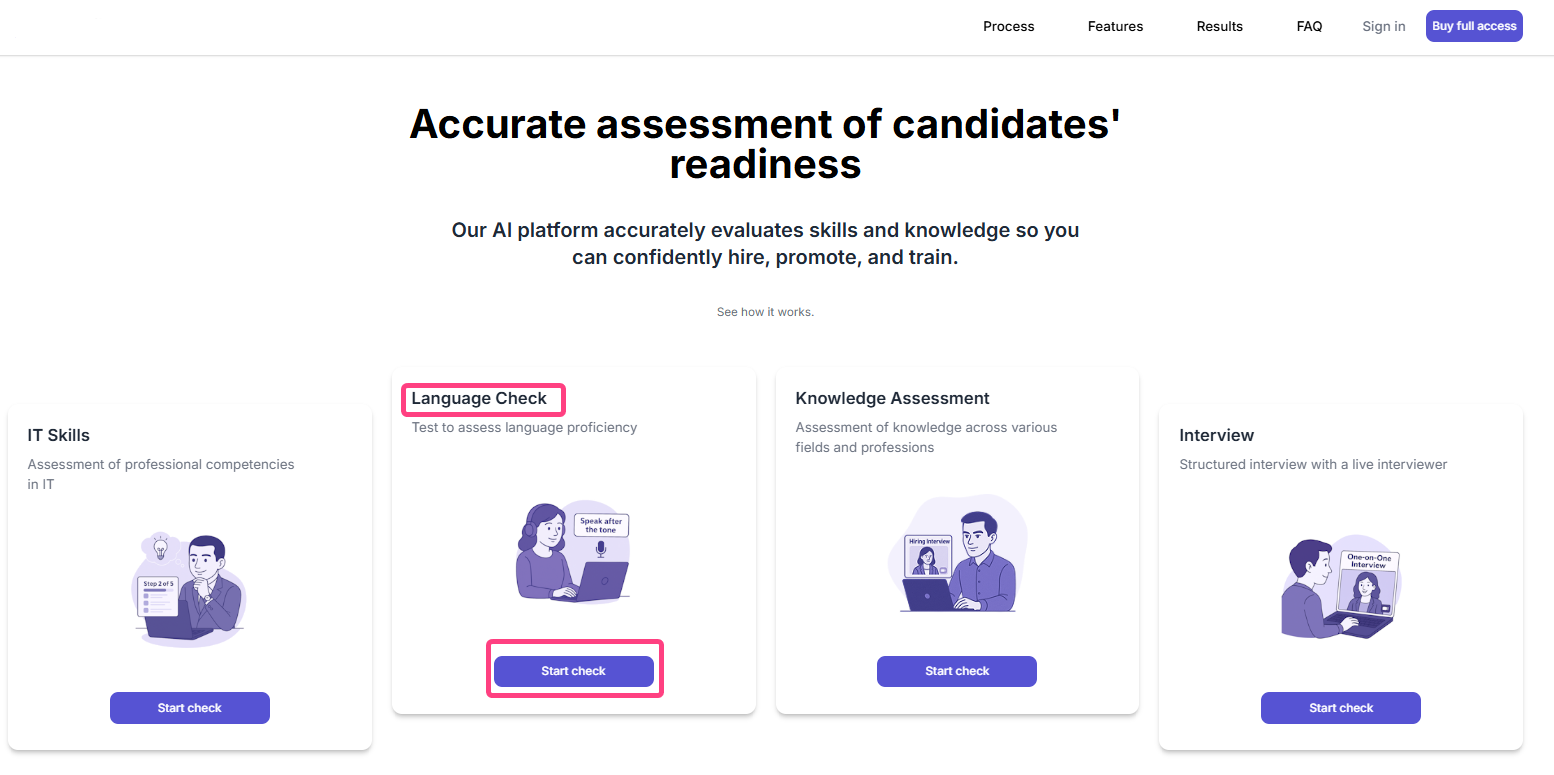
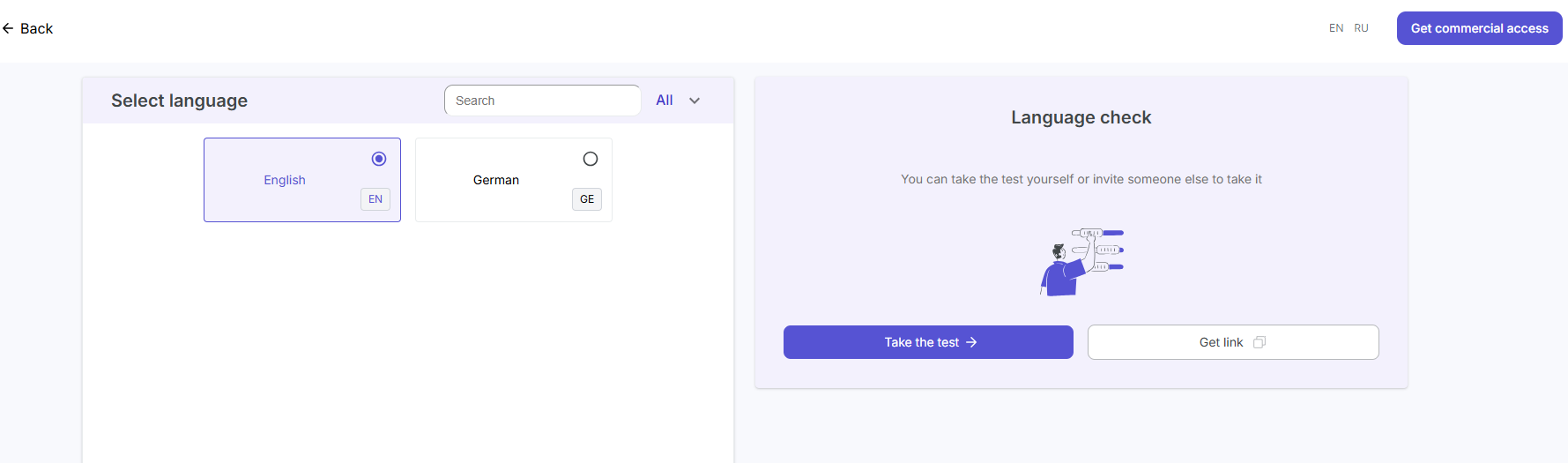
- On the next screen, select the required language.
- After selecting it, you have two options:
- Take test to start the assessment immediately.
- Get link to generate a unique link to this test. You can copy this link and send it to another person.
Step 2: Enter Your Details And Consent
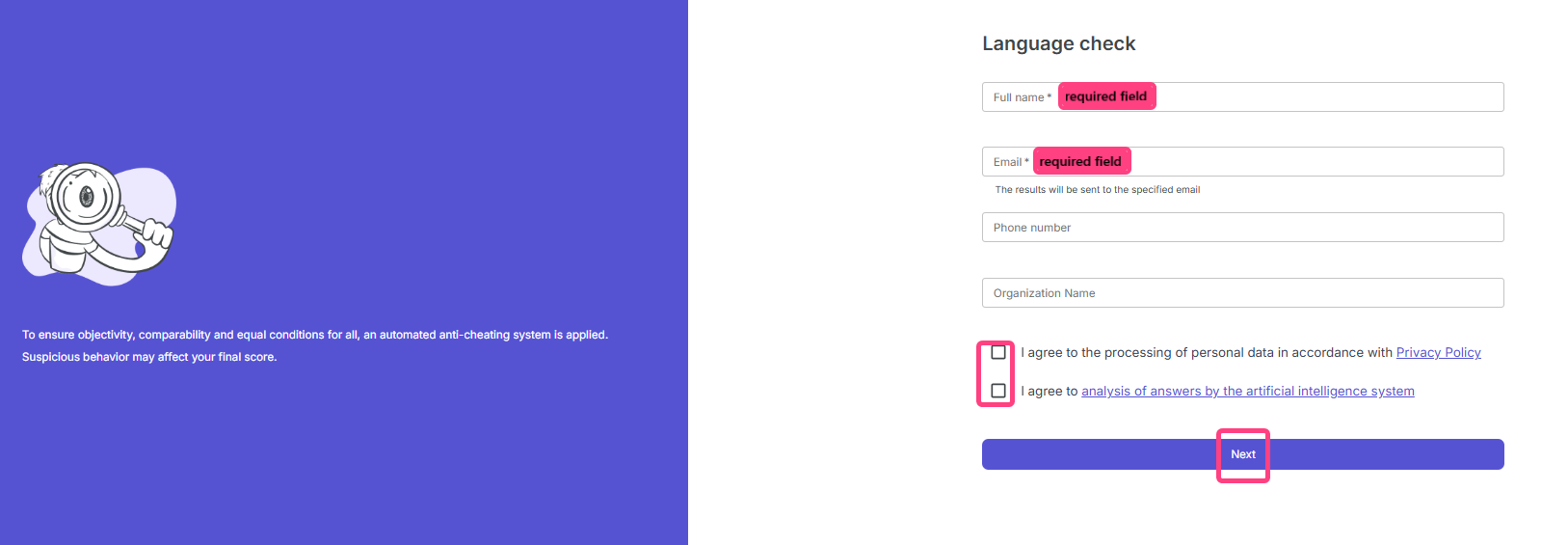
If you clicked Take test, a personal data entry form will open.
- Fill in the required fields:
- Full name
- Email, where the results will be sent
- Phone number
- Review the consent options and tick the boxes:
- I agree to the processing of personal data according to the Privacy Policy.
- I agree to the analysis of answers by the artificial intelligence system.
- Click Next.
Step 3: Equipment Check And Instructions
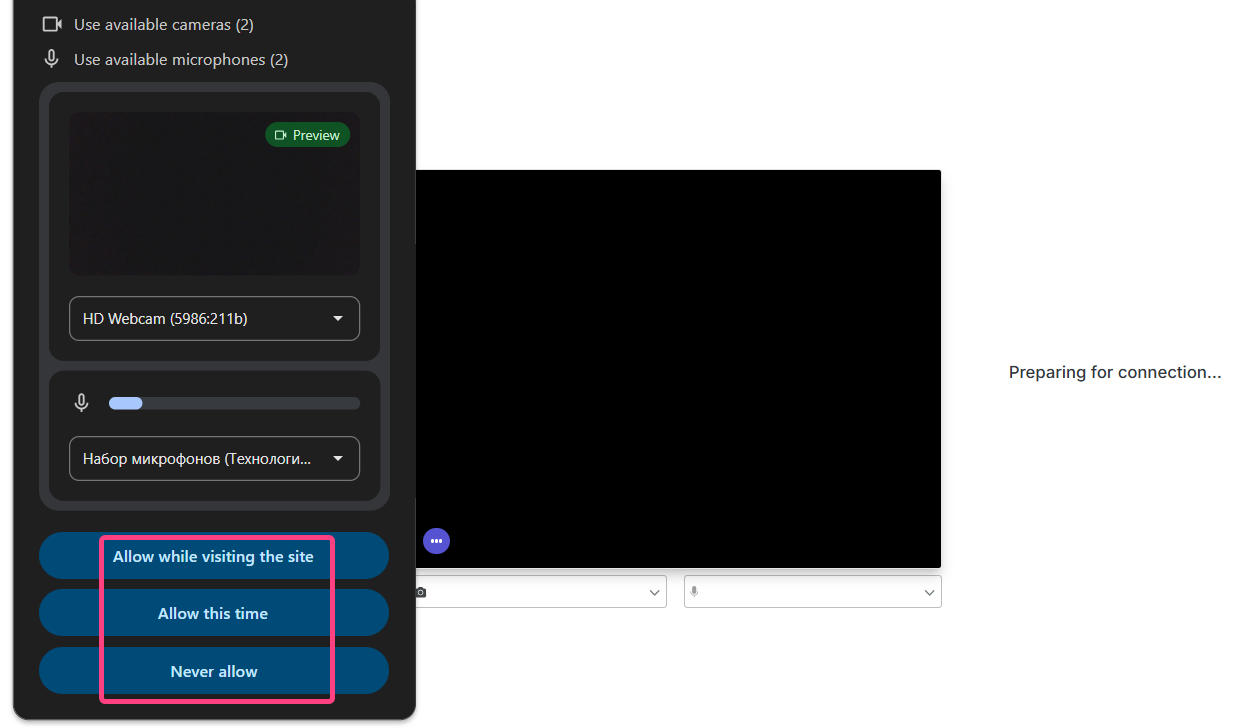
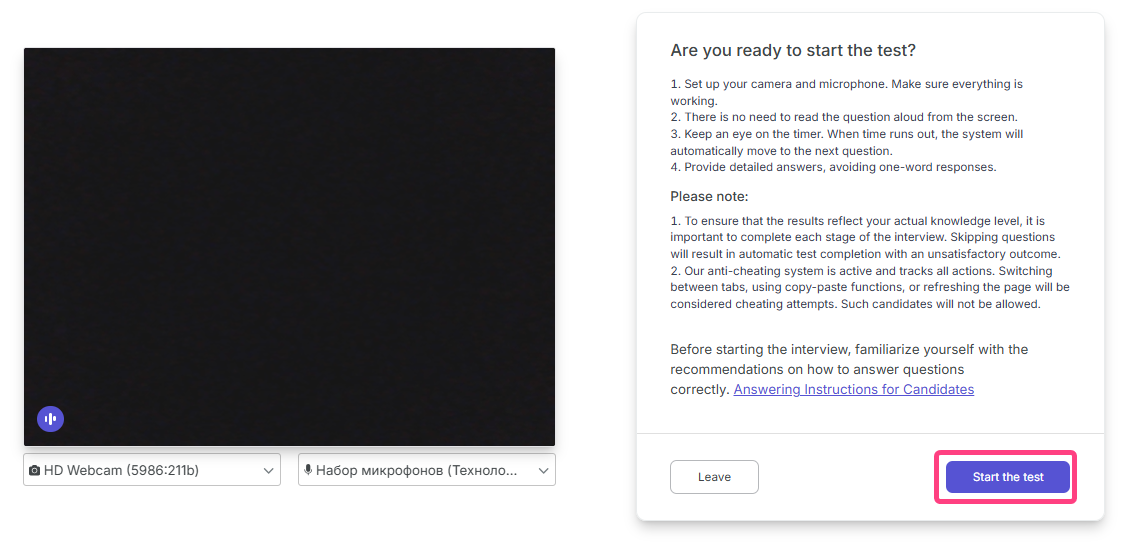
- The system will request access to the camera and microphone. Click Allow in the browser dialog.
- A page with final instructions will open:
- Set up the camera and microphone.
- Watch the timer for each question.
- Give detailed answers.
- Important: to get a result, you need to answer all questions. Skipping questions will lead to an unsatisfactory result.
- Click Start test.
Step 4: Confirm The Test Rules
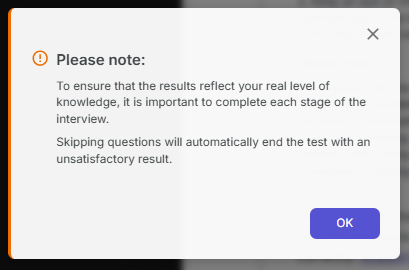
- After starting the test, a warning modal will appear.
- Read the message: to make the result reflect your actual level of knowledge, you need to complete every stage of the interview.
- Click OK to continue.
Step 5: Check The Audio
- A modal window for audio checking will appear.
- Click Start recording and clearly say the phrase shown on the screen.
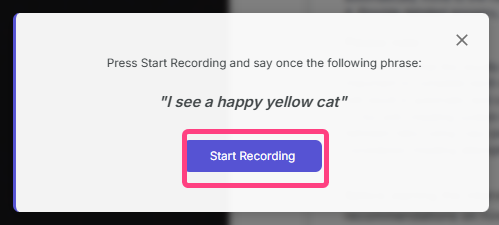
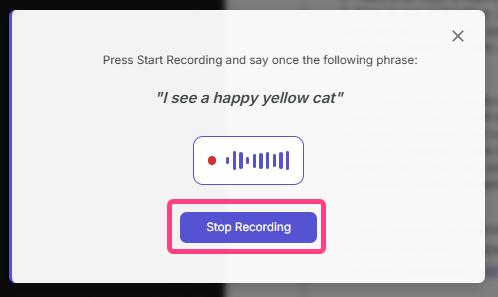
- After the recording starts, say the full phrase and wait until the system captures the audio.
- Make sure the recording was successful and click Stop recording.
Step 6: Complete The Test
The testing interface displays:
- Question in the selected language.
- Progress, meaning the question number and the completion indicator.
- Timer, which counts down the time for the answer.
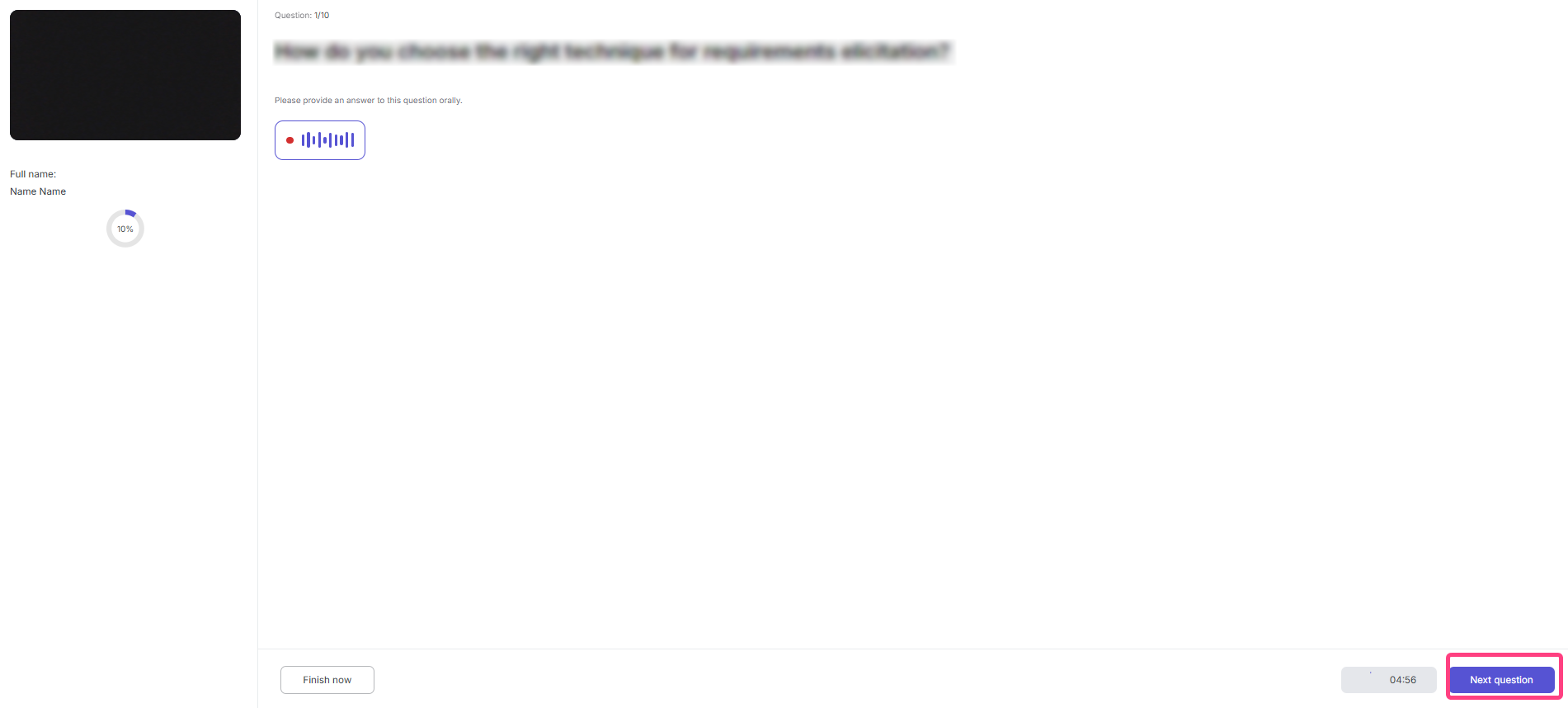
- Give a spoken detailed answer to the question.
- When you are ready, click Next question.
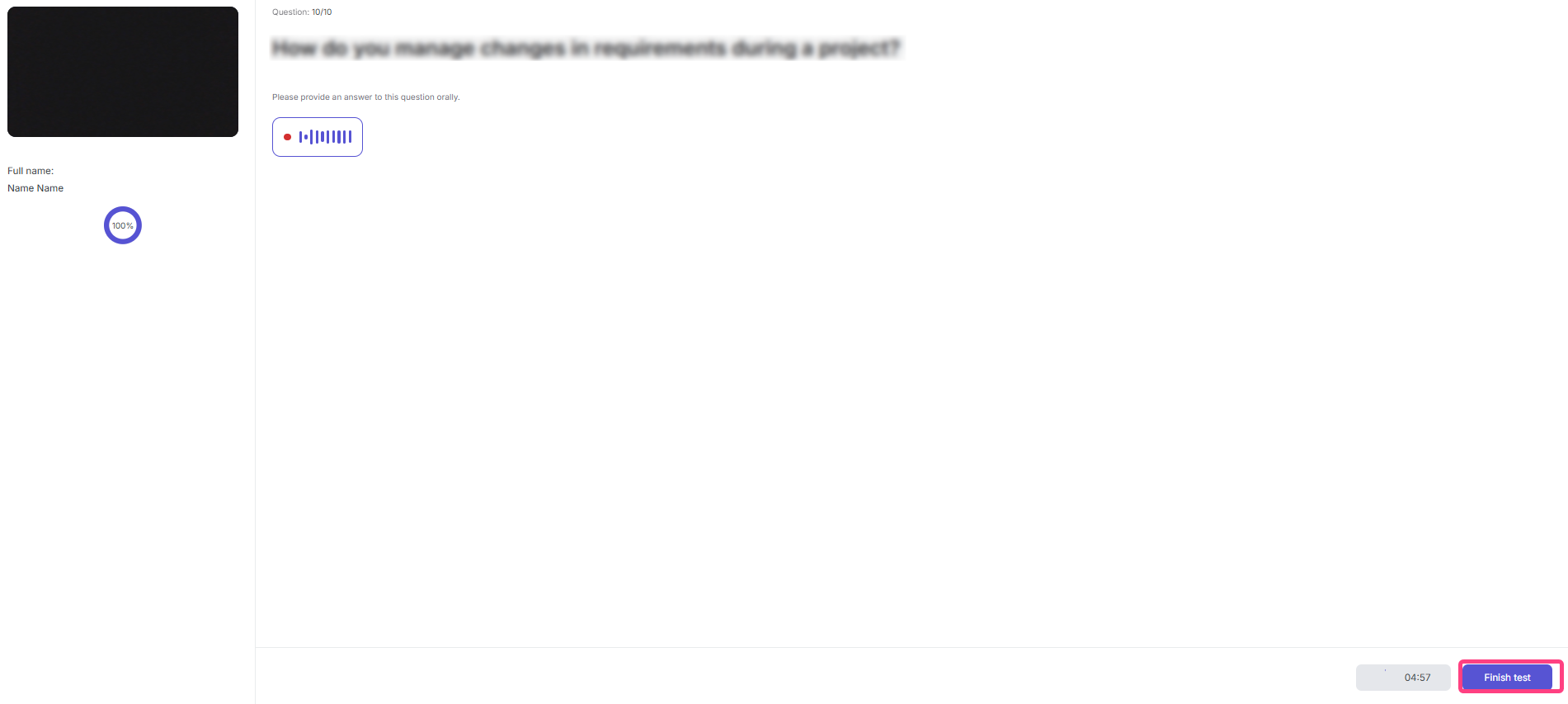
- Repeat the steps for all questions. On the last question, the button changes to Finish test.
Step 7: Finish And Receive Results
- After clicking Finish test, a message will appear: "Thank you for your participation. We are already preparing your report..."
- The results will be sent automatically to the email specified in step 2.
- The report contains:
- assigned grade or level;
- a table with questions and your answers;
- a transcript and video recording of the interview.
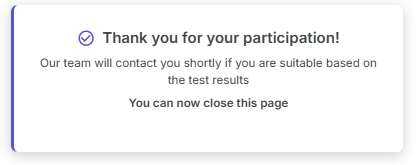
After reading the message, you can close the page.