OS Settings for Windows
OS settings: how to allow camera and microphone access in Windows
If the system reports missing permissions, check the privacy settings in Windows.
Windows 10
- Select
Start→Settings→Privacy→Microphone.
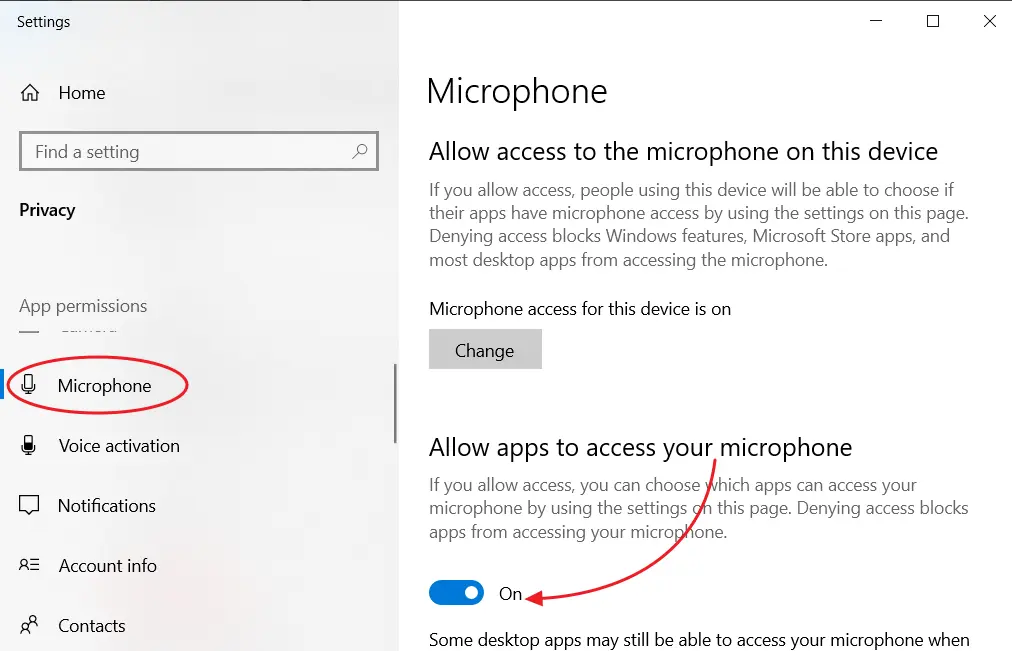
- Make sure the switch is enabled in the
Allow apps to access your microphoneblock. - In the
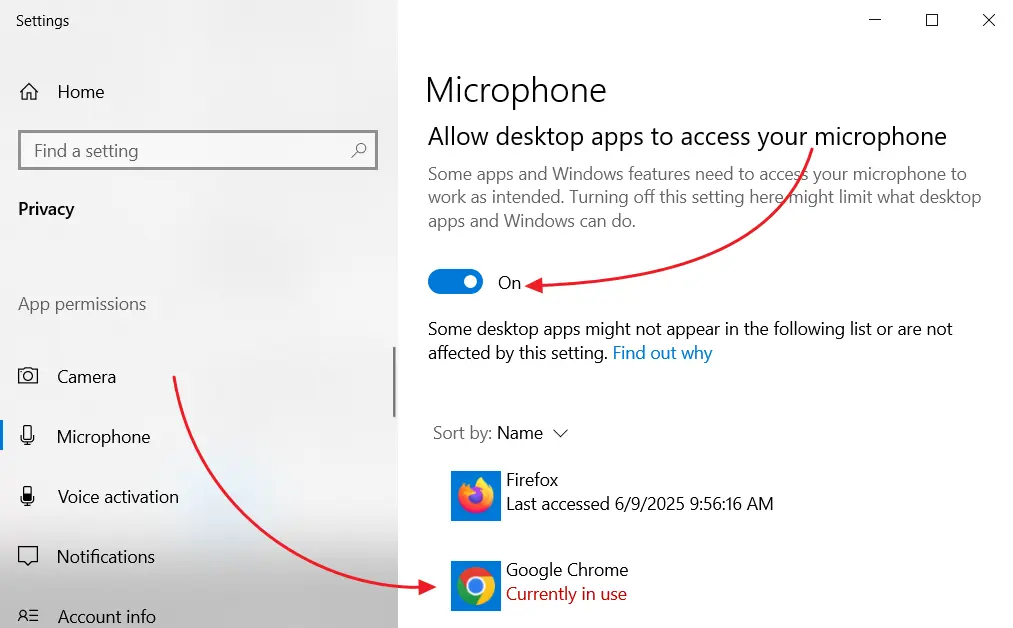
Allow desktop apps to access your microphoneblock, make sure the switch is also enabled and your browser appears in the app list.
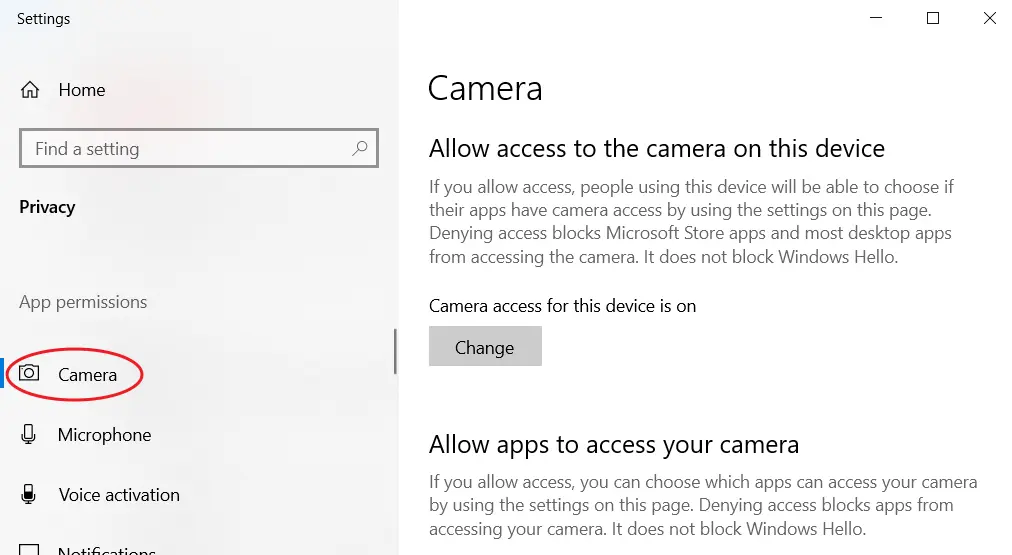
- Select the
Camerasection.
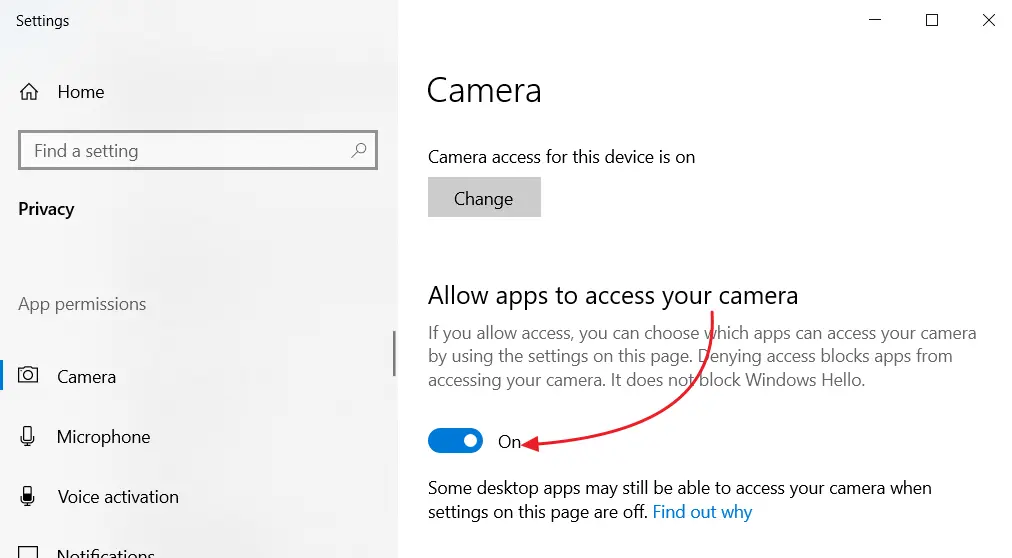
- Make sure the switch is enabled in the
Allow apps to access your camerablock.
- In the
Allow desktop apps to access your camerablock, make sure the switch is also enabled and your browser appears in the app list.
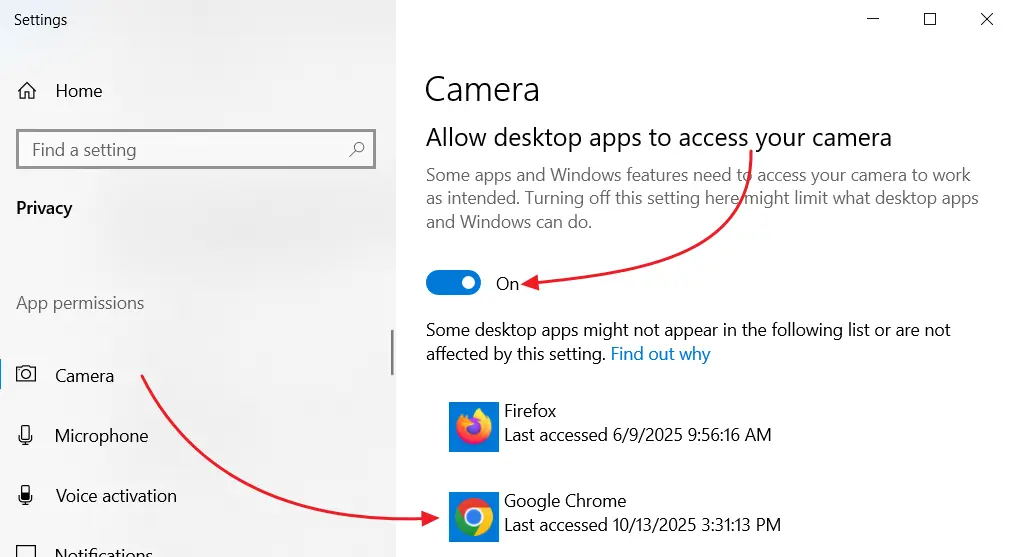
- In the app list below, find your browser, such as Chrome or Edge, and make sure access is allowed for it as well.
- Then select
Microphonein the left menu. - Enable the
Allow apps to access your microphoneoption. - Make sure your browser appears in the list of allowed applications.
Windows 11
- Open
Start→System→Privacy & security. - Select the
Camerasection. - Enable the
Camera accessoption. - Make sure your browser appears in the list of apps that are allowed access.
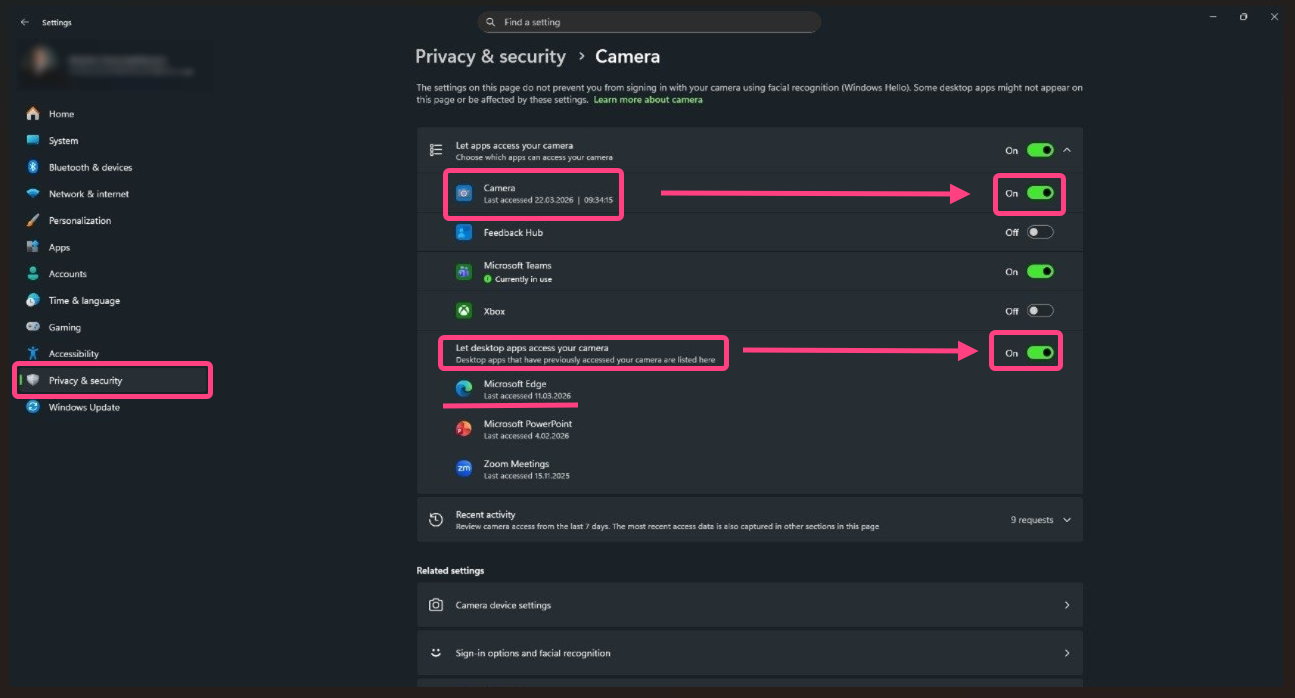
- Go back and select the
Microphonesection.
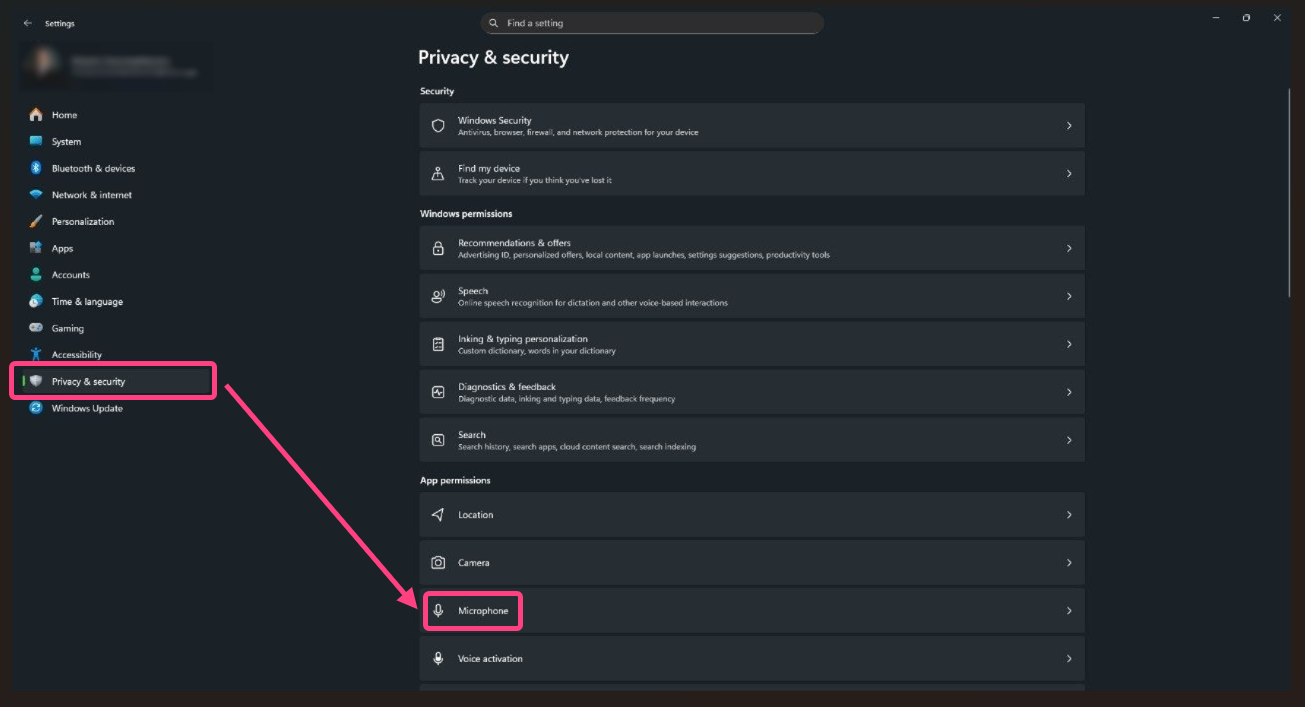
- Enable the
Microphone accessoption.
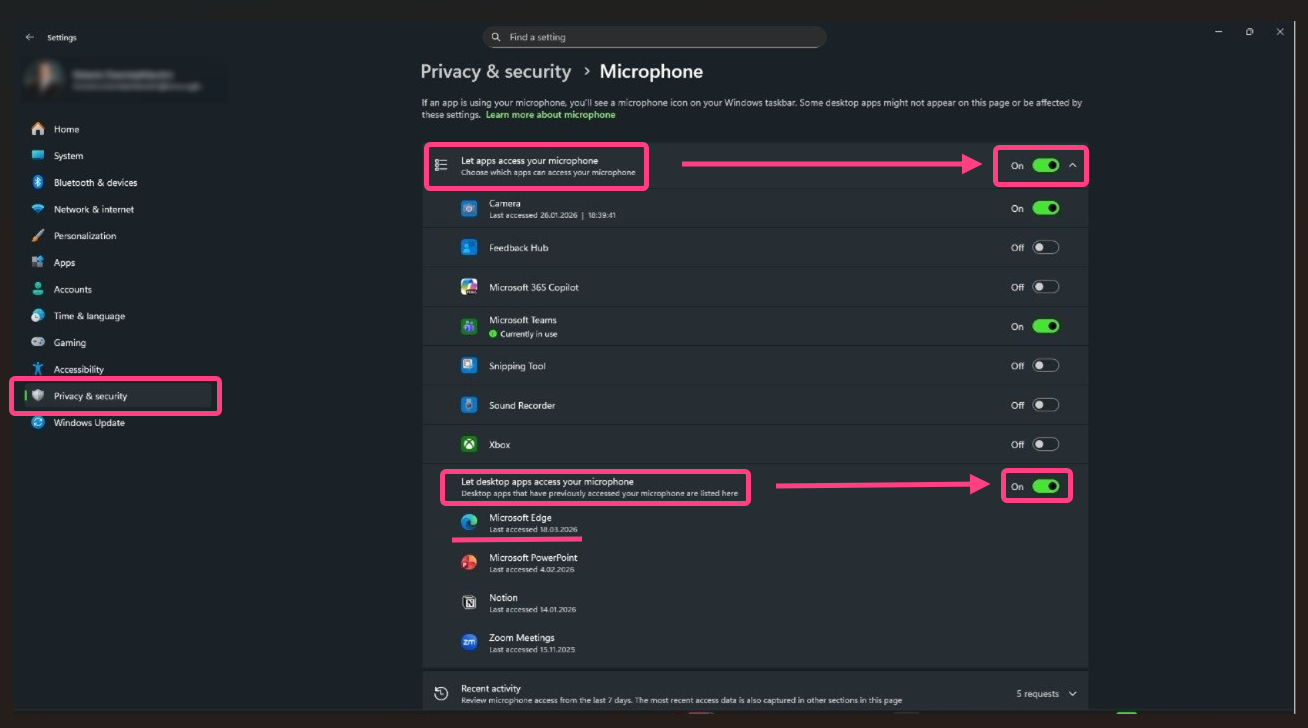
- Make sure the browser appears in the list of allowed applications.
After the changes
- Close the browser completely.
- Open it again and go to the interview page.
- The system will ask for permissions again, click
Allow.