Browser Settings for Safari
Browser settings: how to allow camera and microphone access in Safari
- Open the Safari browser.
- In the top menu, select Safari -> Settings.
- Go to the Websites tab.
- In the left menu, select Camera:
- In the right part of the screen, you will see a list of open websites.
- For the site RECRUITER.AI, or another site where you are taking the interview, select Allow in the dropdown list.
- For all other sites, you can leave the Ask option.
- Then select Microphone in the left menu:
- Similarly, select Allow for the required site.
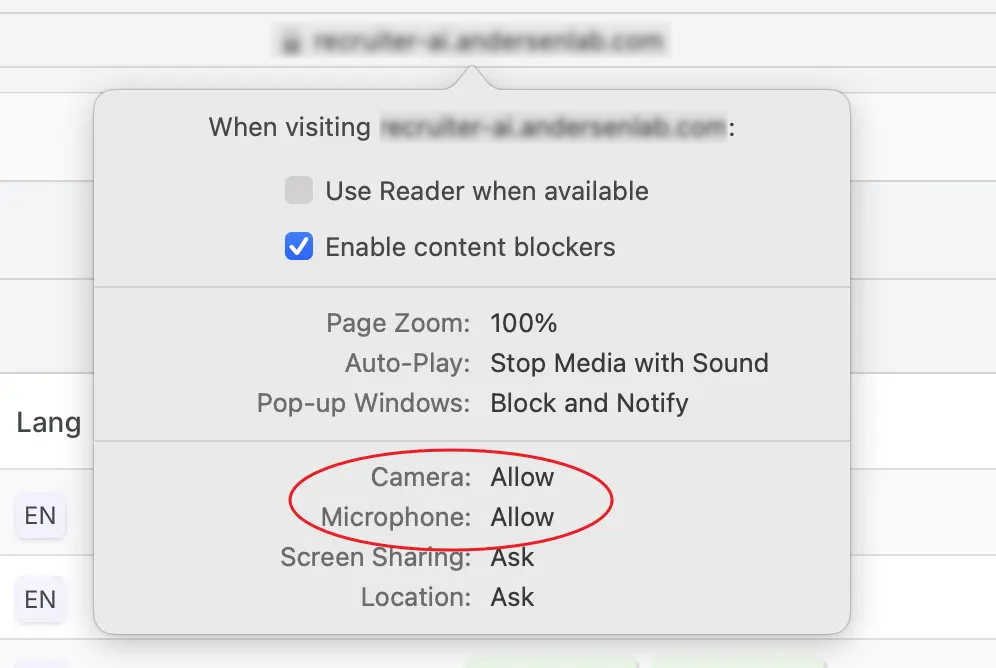
- Similarly, select Allow for the required site.
On the first visit to the site
When the system requests access to the camera and microphone, be sure to click Allow in the browser popup. If you click Deny, you will need to enable access manually through the settings as described above.