OS Settings for macOS
OS settings: how to allow camera and microphone access in macOS
- Open
System Settings. - Go to the
Privacy & Securitysection.
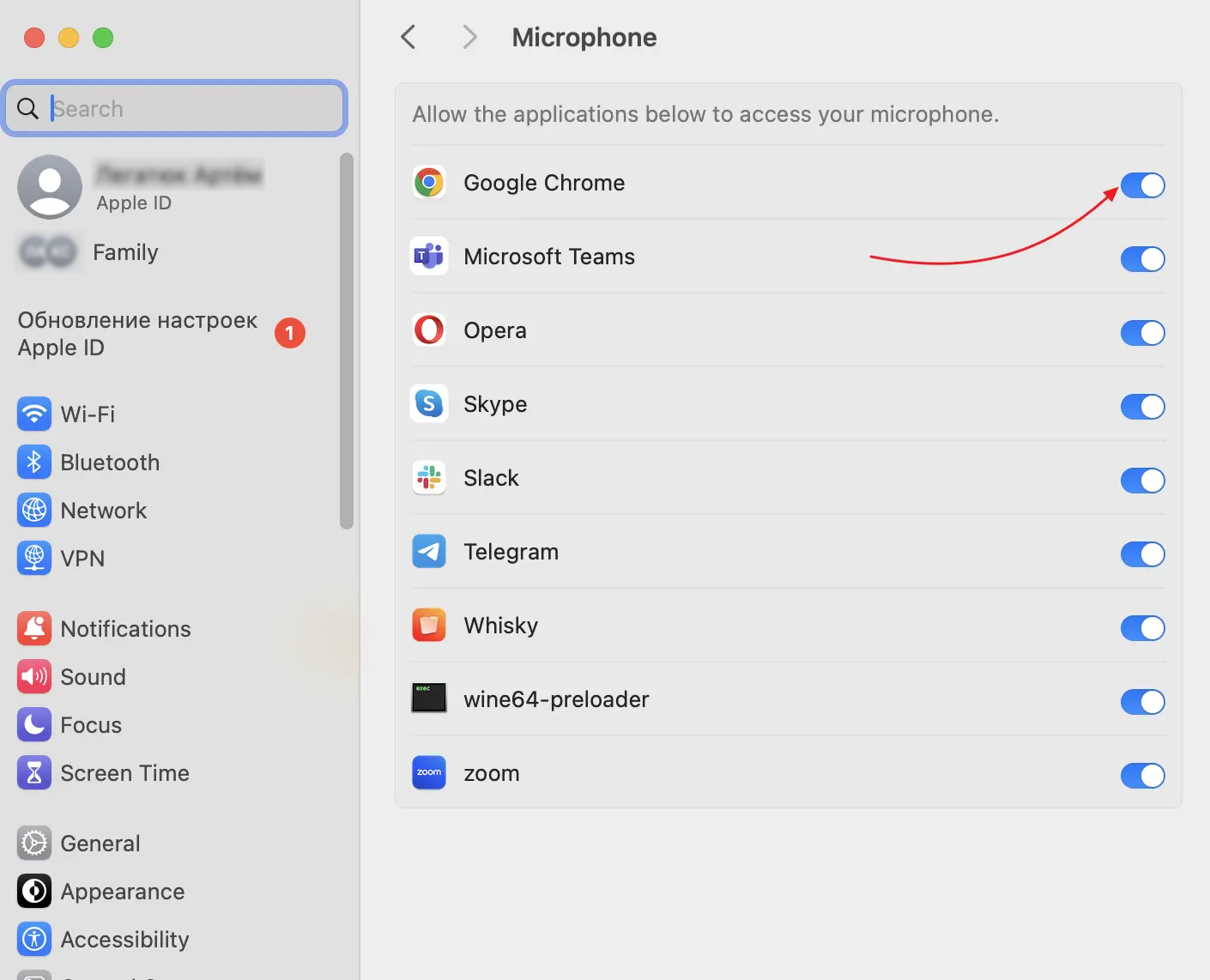
- In the left menu, select
Camera.
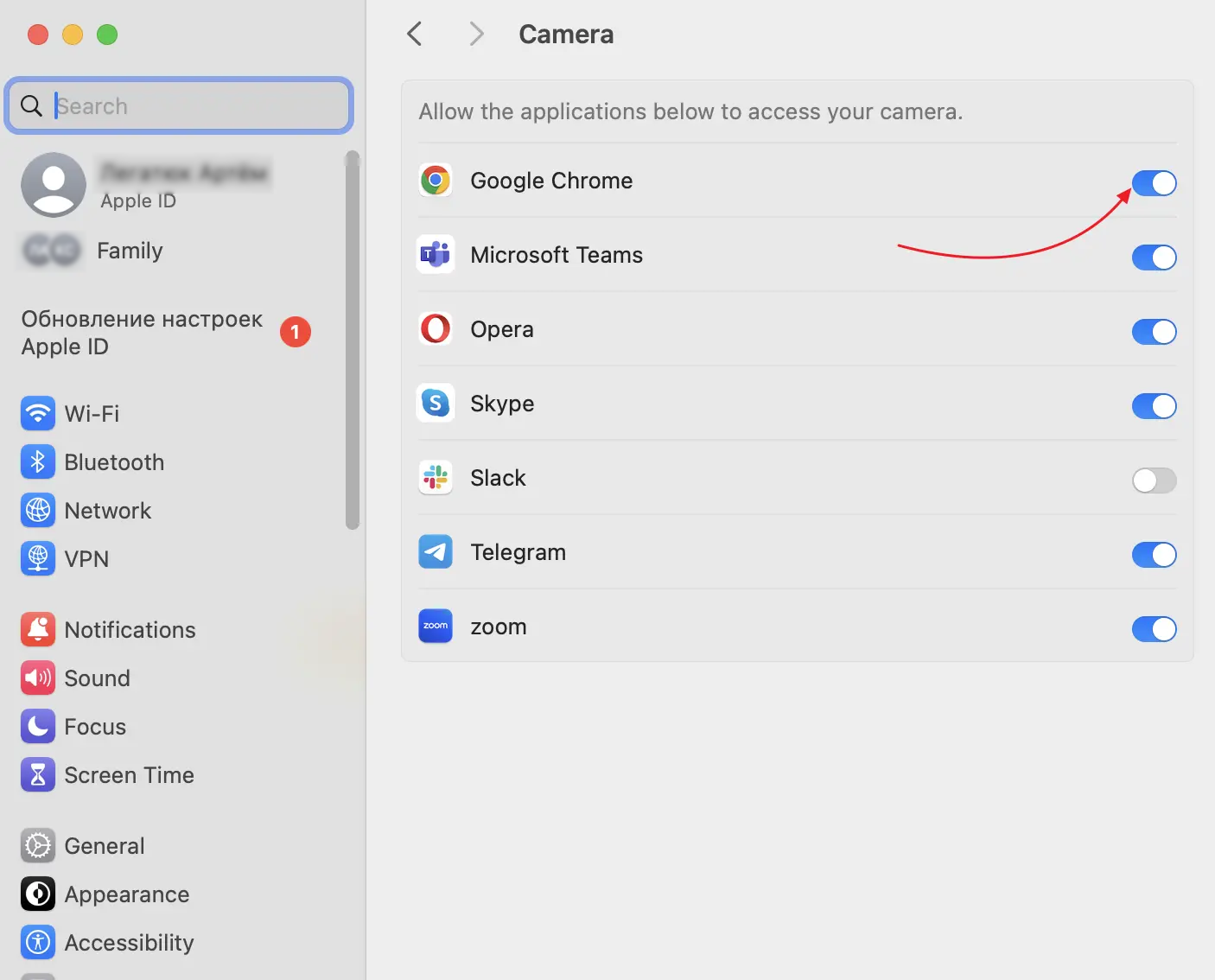
- Make sure your browser, such as Chrome, Safari, or another browser, is selected in the list of apps that are allowed to access the camera.
- If the browser is not in the list, click the
+button and add it from theApplicationsfolder. - Then select
Microphonein the left menu.
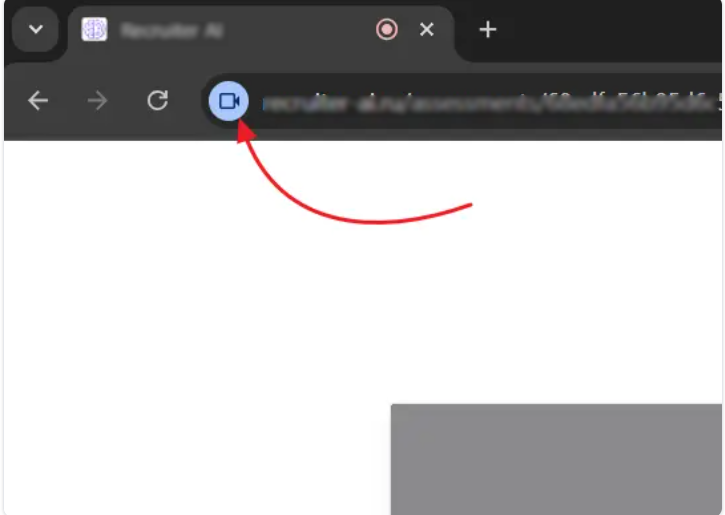
- Click the settings icon on the left side of the address bar.
- Make sure the microphone and camera toggles are enabled.
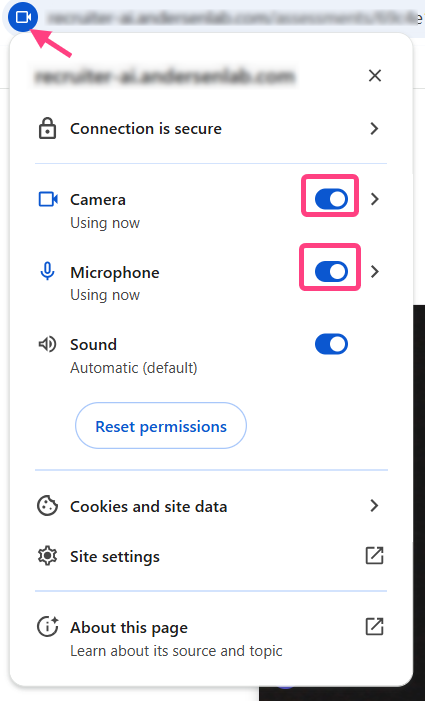
- Make sure your browser is also selected in the list of allowed applications.