Browser Settings for Chrome
Browser settings for Chrome: how to allow camera and microphone access.
If the browser does not request permissions or shows an error, check the site settings.
Method 1: Quick check for the current site
- On the interview page, click the lock icon, or the
iicon in a circle, to the left of the address bar.

- In the dropdown menu, find the Camera and Microphone sections.
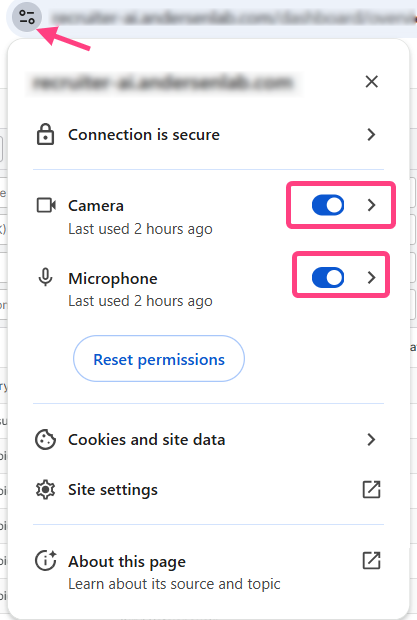
- Allow should be selected for each device.
- If it says
BlockorAsk, change it toAllow. - Refresh the page.
Method 2: Settings for all sites
- Open the Google Chrome browser.
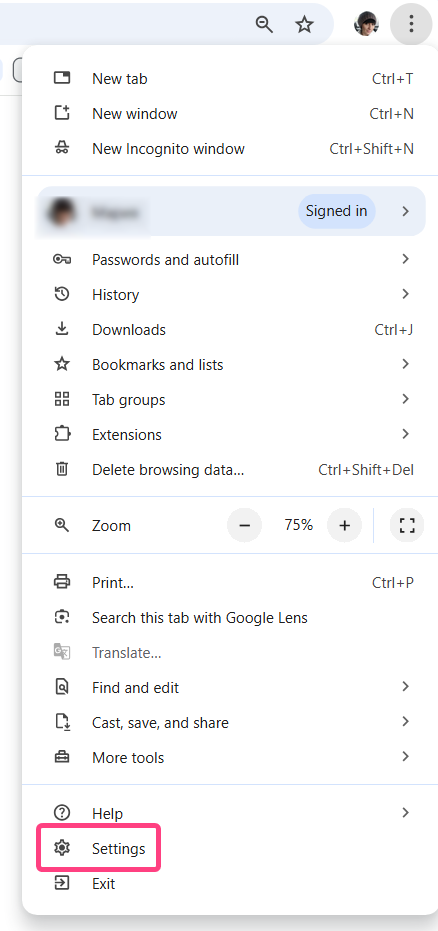
- In the upper-right corner, click the three-dot icon, menu, and select Settings.
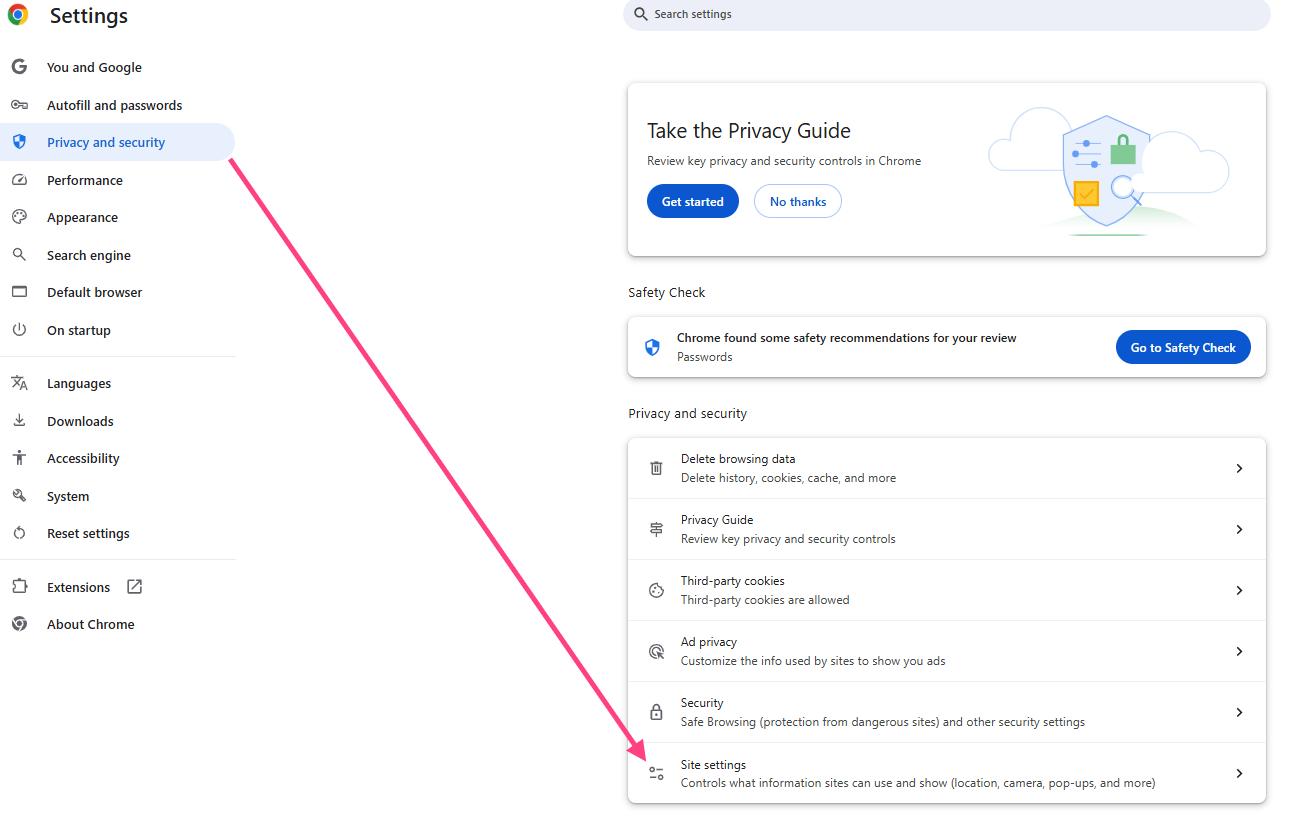
- In the left menu, select Privacy and security → Site settings.
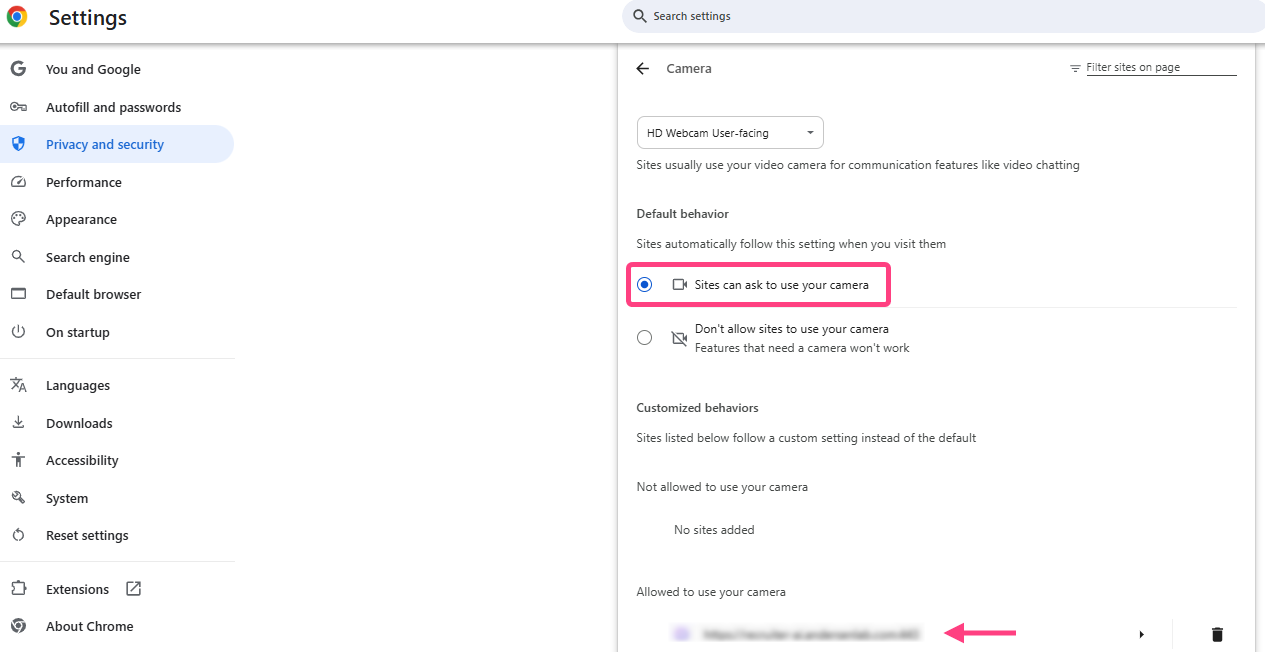
- Select Camera:
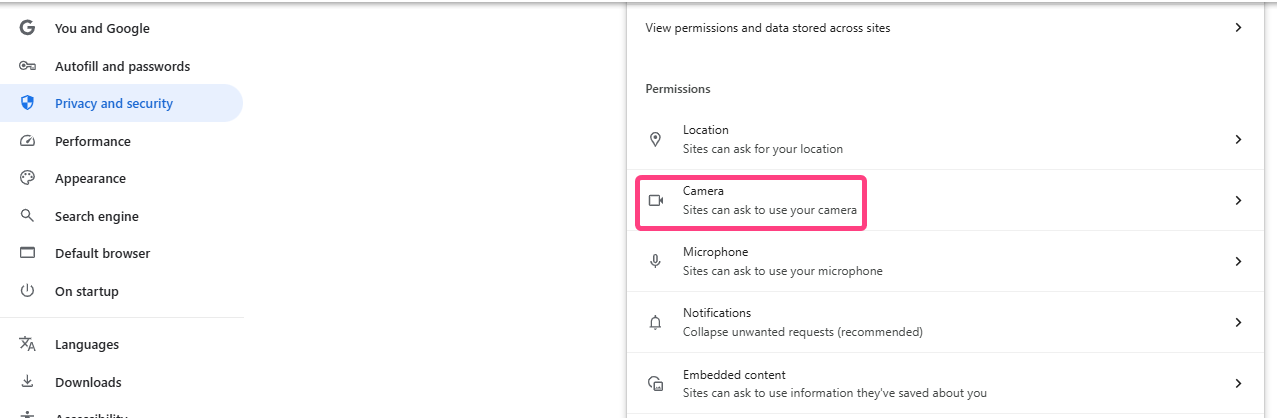
- Make sure the Sites can ask to use your camera option is selected.
- If the required site, for example, RECRUITER.AI, is in the blocked list, click the trash icon next to it.
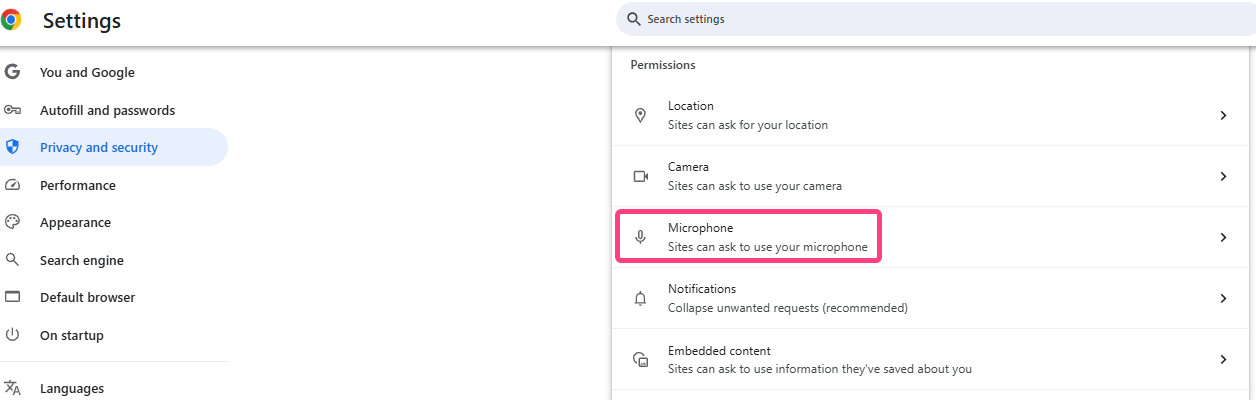
- Go back and select Microphone:
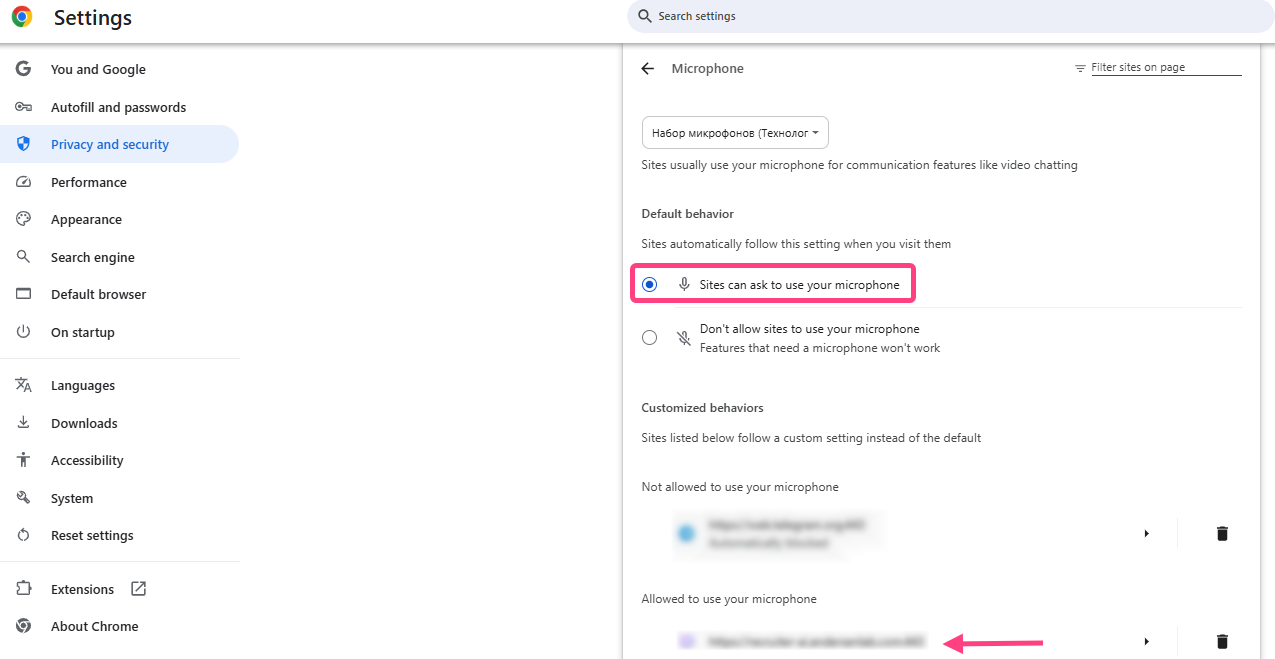
- Similarly, make sure the Sites can ask to use your microphone option is selected.
- Remove the site from the blocked list if it is there.
After the changes
Refresh the interview page. The browser will request permissions again, click Allow.