Clearing Data in Safari
Clearing cache and cookies in Safari.
How to clear the cache
Option 1: Quick clear using a keyboard shortcut
- Open the required page.
- Press
Command + Option + Eand Safari will clear the cache. If the command does not work, enable theDevelopmenu as described in option 2.
Option 2: Through the interface
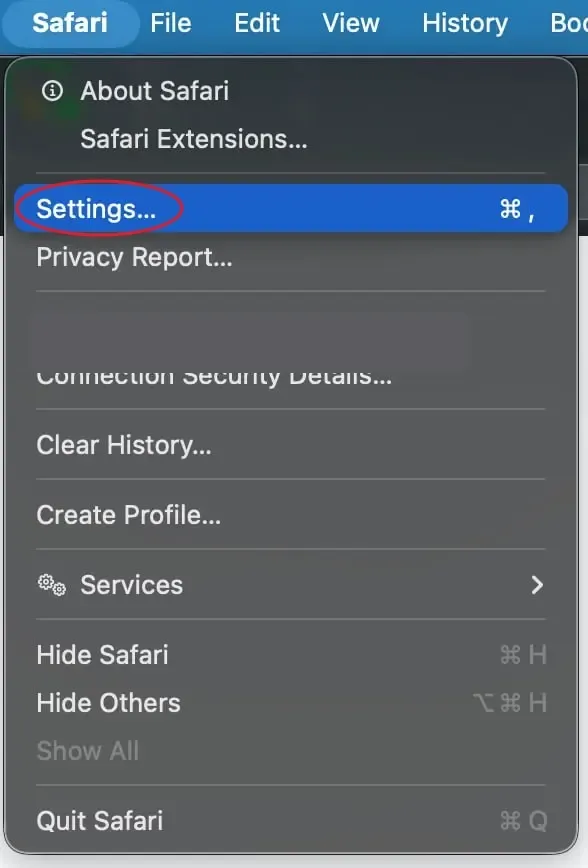
- In the top menu, select
Safari->Settings, orPreferences.
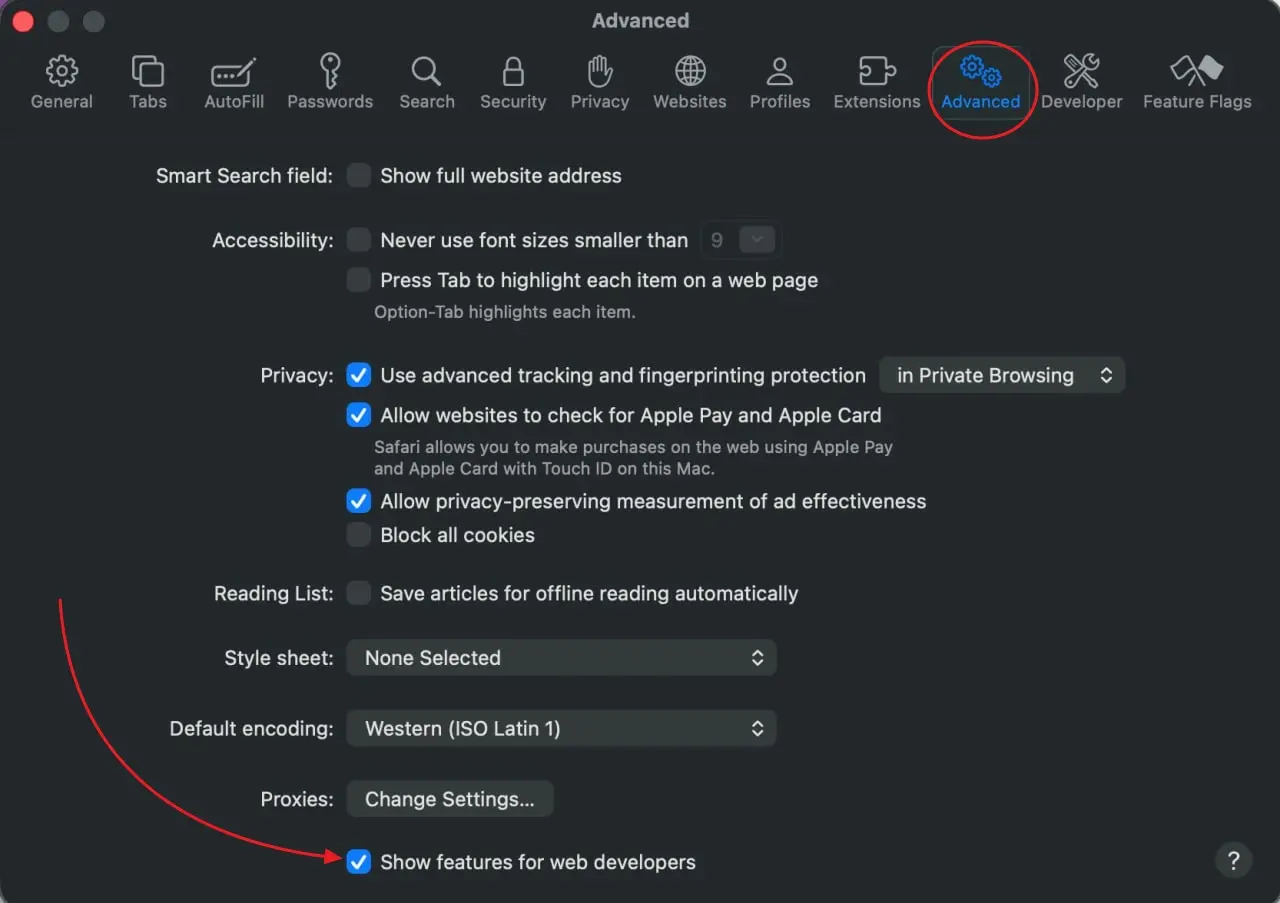
- Go to the
Advancedtab and enable theShow Develop menu in menu baroption.
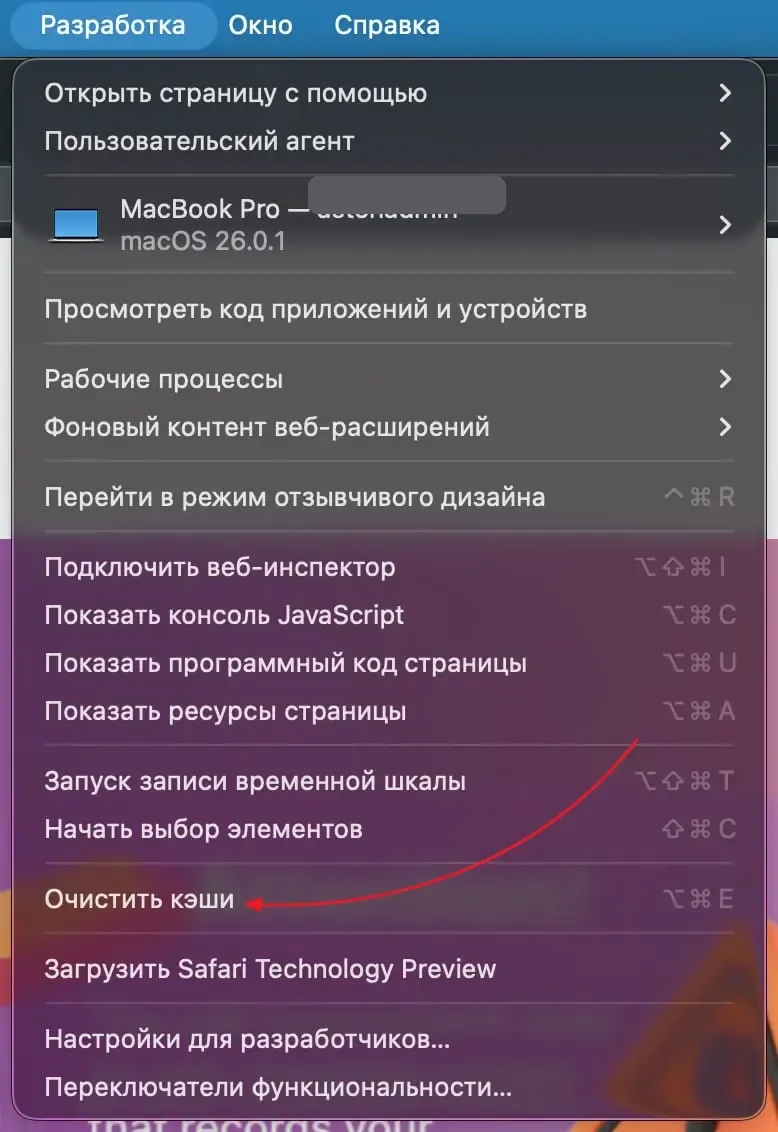
- In the top menu, open
Develop->Empty Caches.
- Then refresh the page using
Command + R.
How to delete cookies
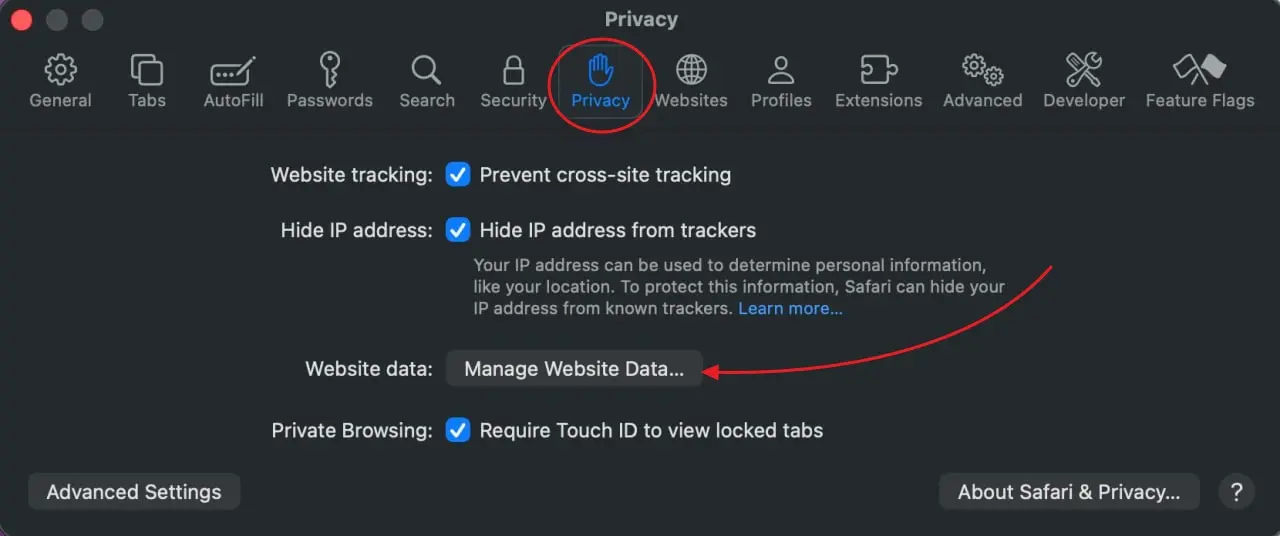
- Go to
Safari->Settings->Privacy->Manage Website Data.
- In the list, find RECRUITER.AI.
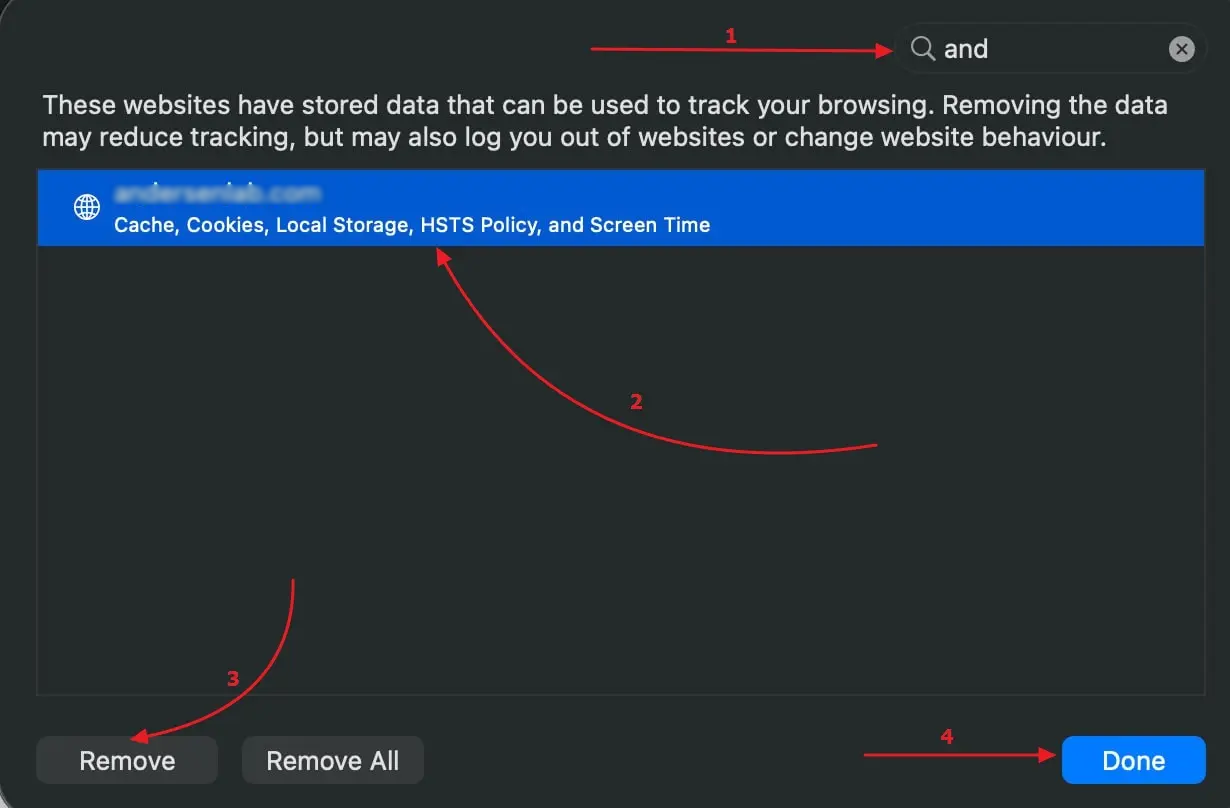
- Select
RemoveorRemove Allif you want to clear all cookies.
Option 3: For iOS, if you take the interview on iPhone or iPad
- Open the device Settings.
- Scroll down and select Safari.
- Scroll down to the Clear History and Website Data section.
- Tap Clear History and Data and confirm.
After clearing Close the browser and open it again. Go to the interview page.