Clearing Data in Google Chrome
Clearing cache and cookies in Google Chrome.
Method 1: Quick clear
- Open the Google Chrome browser.
- Press the keyboard shortcut:
- Windows/Linux:
Ctrl + Shift + Del - macOS:
Cmd + Shift + Backspace
- Windows/Linux:
- The
Clear browsing datawindow will open.
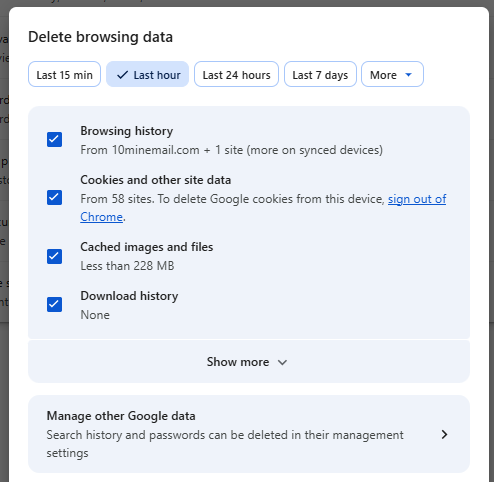
- In the
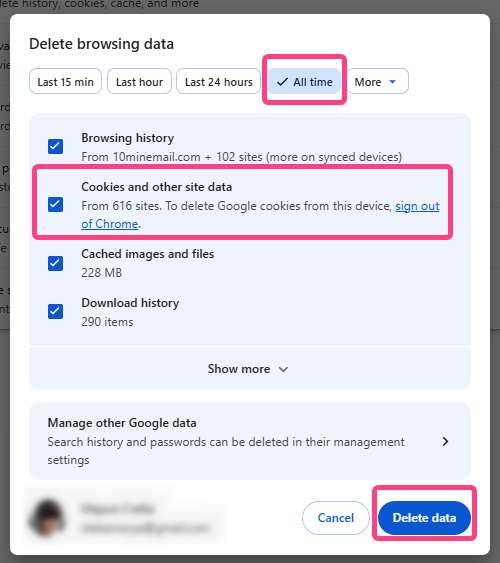
Time rangedropdown, select All time.
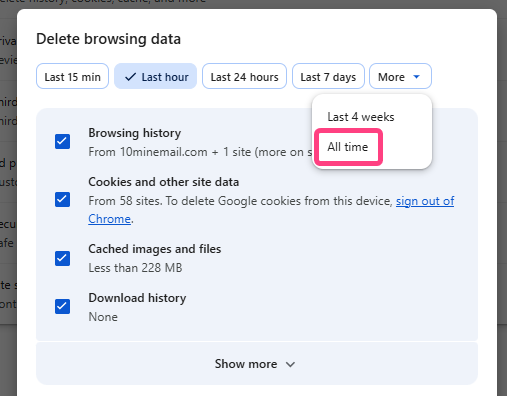
- Check the following boxes:
- Cookies and other site data
- Cached images and files
- Click the Delete data button.
Method 2: Through settings
- Open the Google Chrome browser.
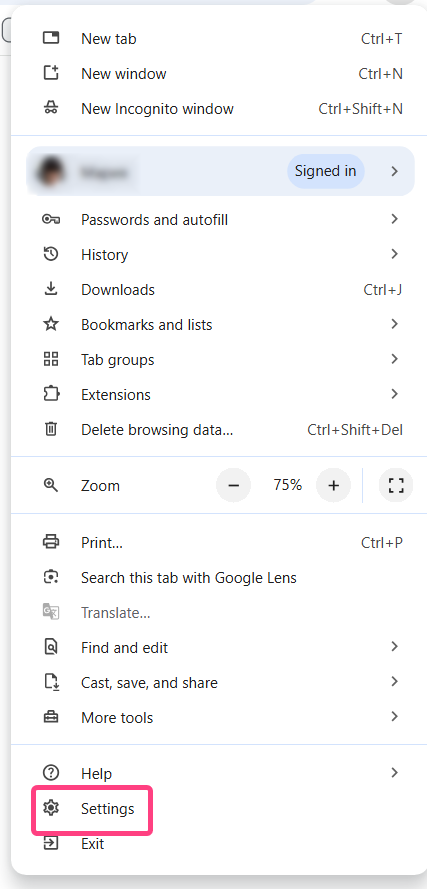
- In the upper-right corner, click the three-dot icon, menu, and select Settings.
- In the left menu, select Privacy and security.
- Click Browsing data.
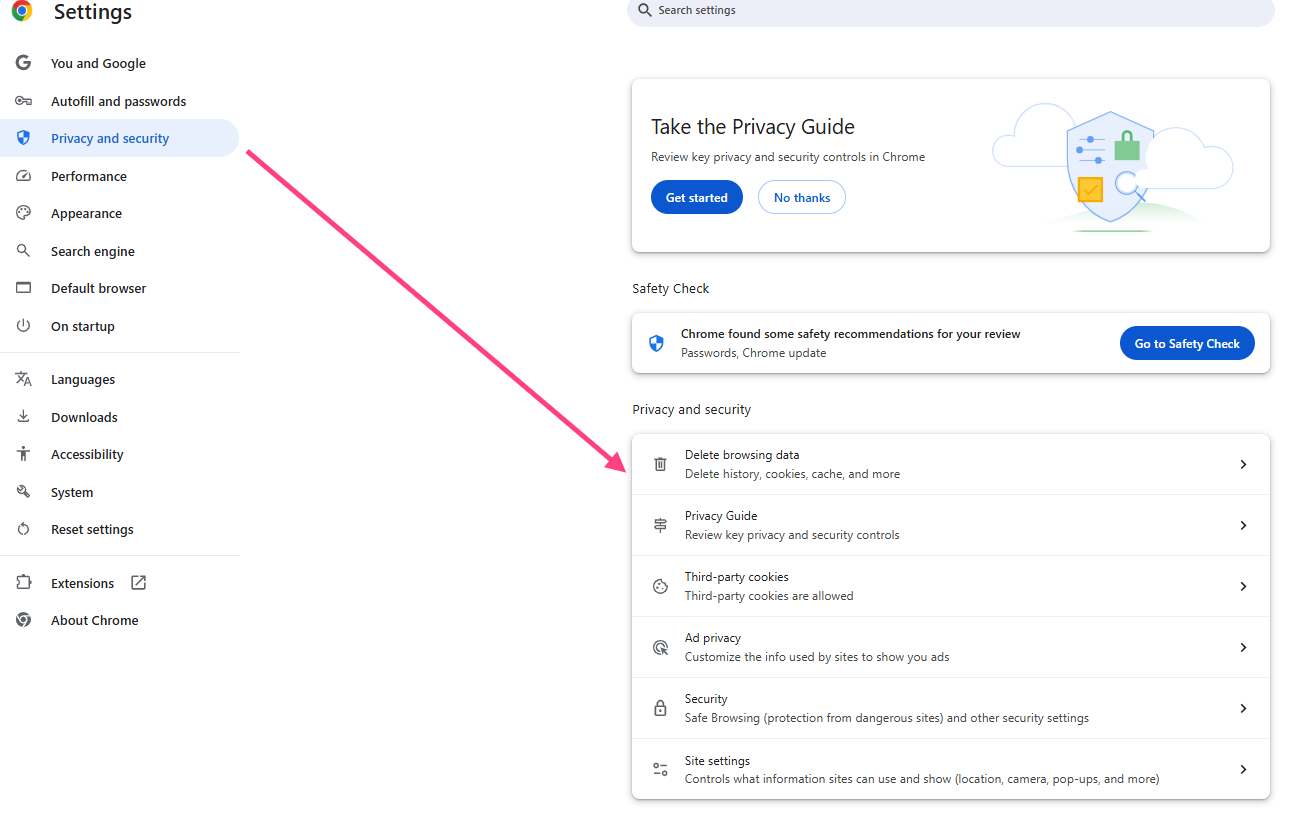
- In the window that opens, follow steps 4-6 from method 1.
After clearing Close the browser and open it again. Go to the interview page, and the site will request authorization again.