Solution for Windows
OS settings: how to enable the microphone in Windows
If the microphone is disabled in Windows settings, follow these steps.
Windows 10
- Go to
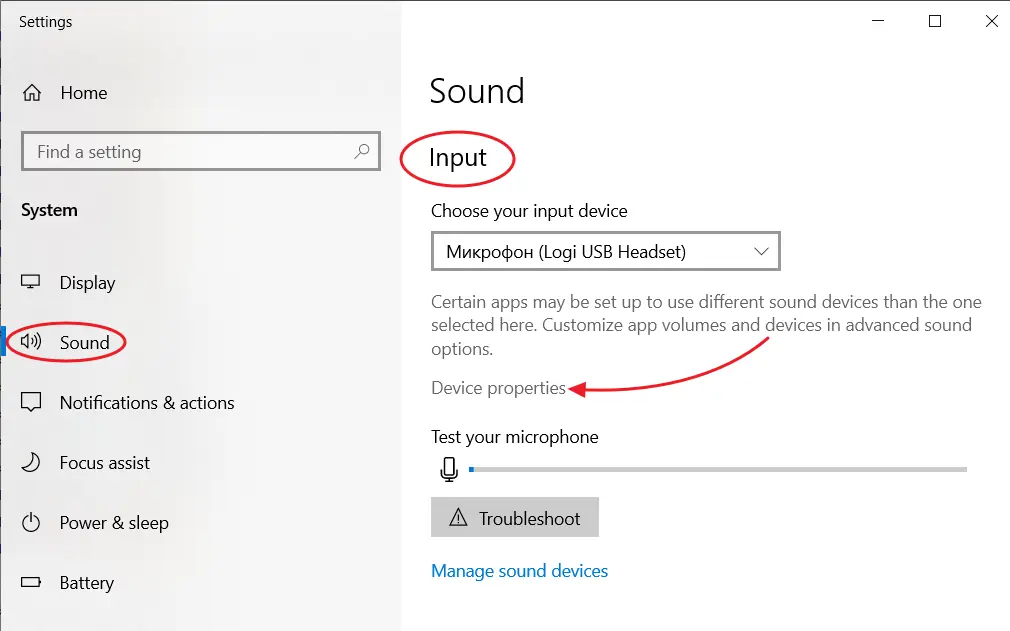
Start→Settings→System→Sound. - In the
Inputsection, select the required microphone, if there are several, and clickDevice properties.
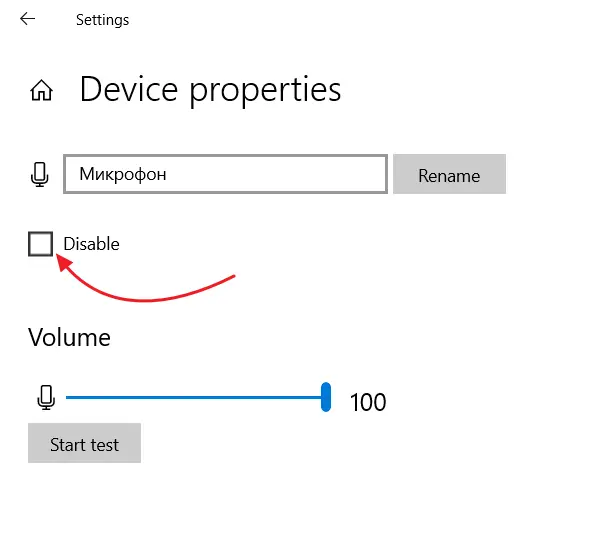
- Make sure the Disable option is not active. If it is active, click it to enable the microphone.
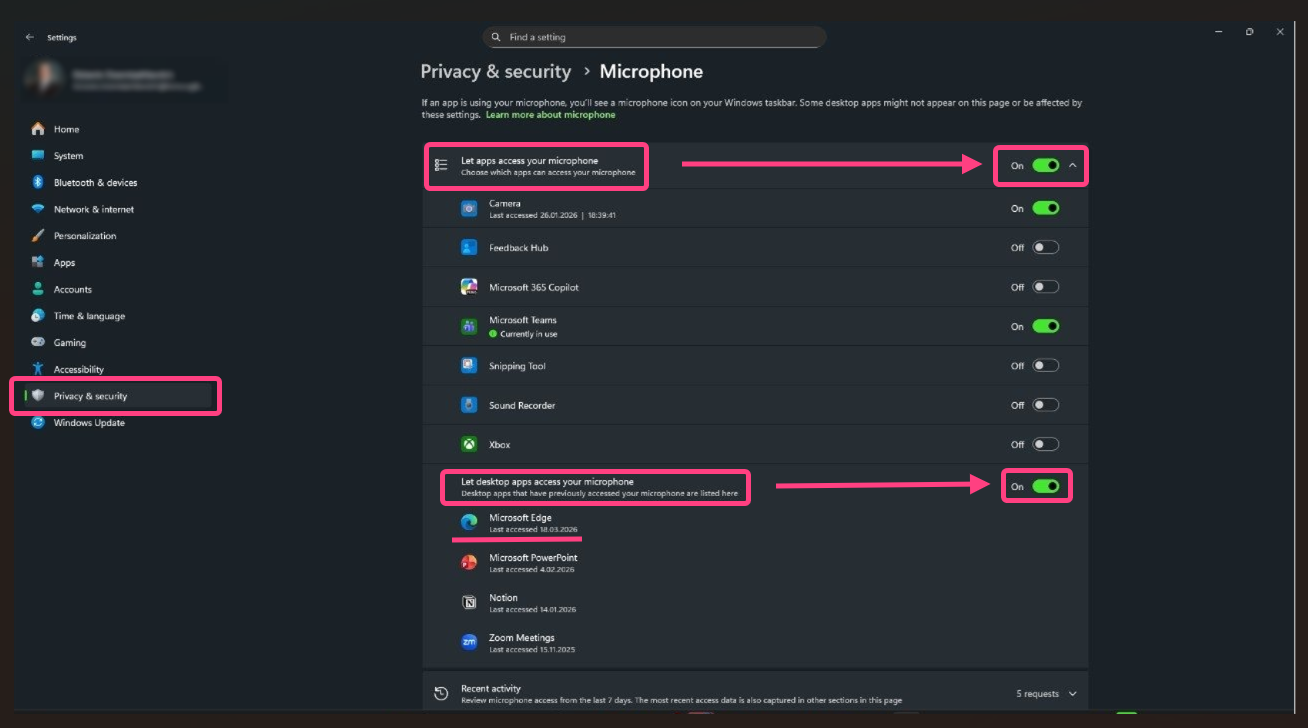
- Also check that microphone access is allowed in privacy settings:
Start→Settings→Privacy→Microphone.- Enable the
Allow apps to access your microphoneoption.
Windows 11
- Go to
Start→System→Sound.
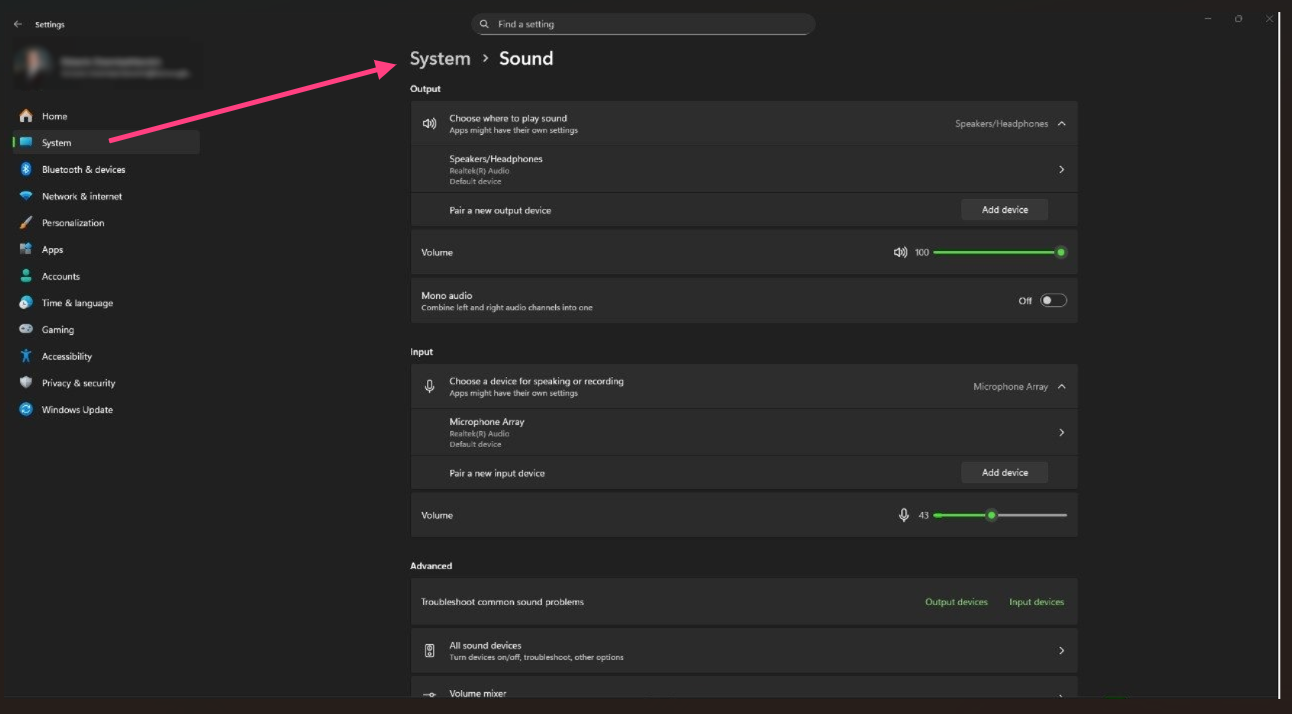
- In the
Inputsection, select the required microphone.
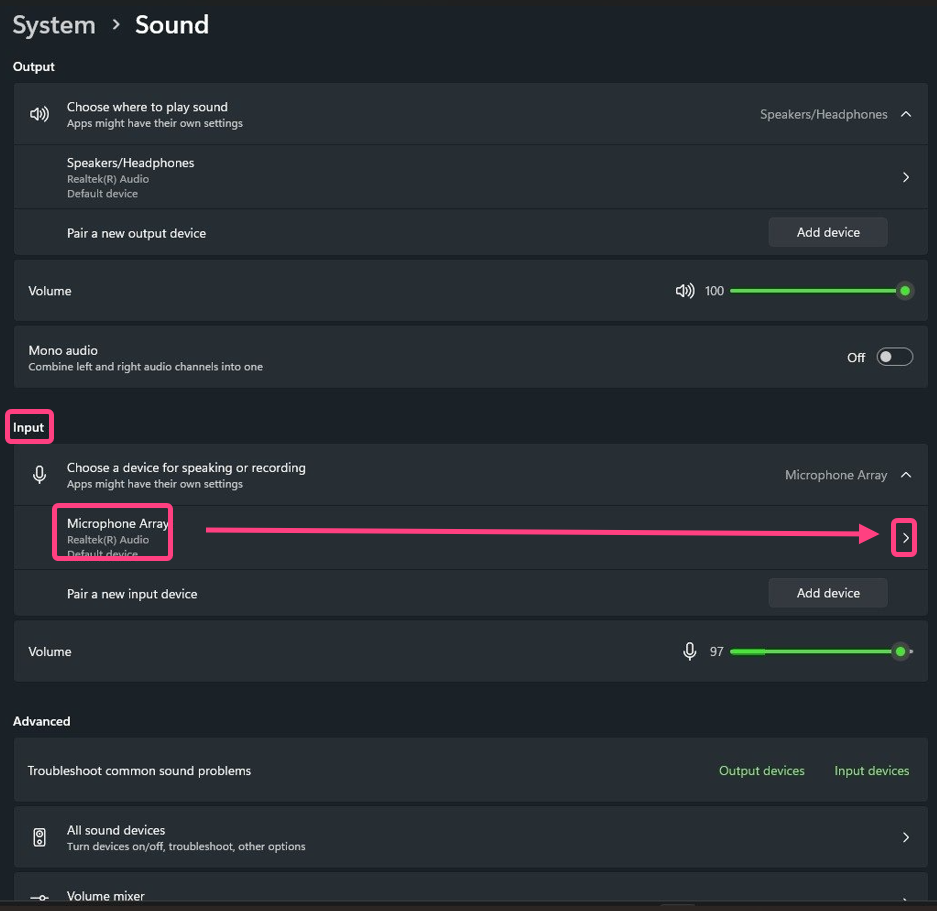
- In the
Generalblock, make sure this device is allowed for use. - Also check privacy settings:
Start→Privacy & security→Microphone.- Enable microphone access for apps.